9.9 The Region/Marker Manager
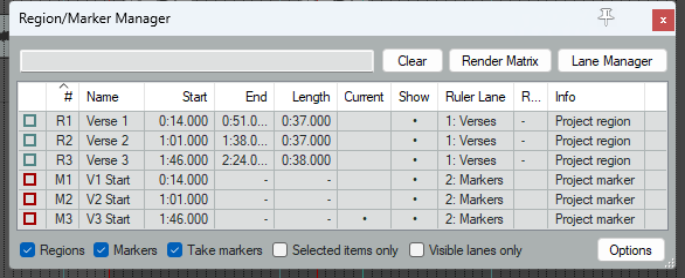
Manager opens this window, for managing regions and markers (including take markers).
Kind: concept (user-guide-section) Chapter: 9 Tempo Based Production, Loops, Markers and Regions Source: REAPER User Guide v7.70
View, Region/Marker
Manager opens this window, for managing regions and markers (including take markers). This organises markers and regions using its buttons, controls and Options menu, including access to the Render Matrix menu for rendering. See also Ruler Layout Options.
To do this … … you do this
Select region/marker types to display
Use check boxes in the bottom of R/M Manager window.
Choose which columns to show/hide
Right click on any column header, tick/untick on list.
Select markers/regions to display
Toggle individual markers/regions on/off in the Show column.
List visible lanes only (toggle)
Use visible lanes only checkbox.
Sort rows by any column header
Click on column header, twice to reverse sort order.
Change column order
Drag header(s) left or right.
Sort display list by any column
Click on column header.
Edit marker/region name
Double click on name.
Indicate current cursor position
Shown in Current column.
Zoom to region in arrange view
Double click region number.
Display take markers outside visible media item
Select command from Region/Marker Manager context (right click) menu. By default these are not displayed.
Highlight region or marker on ruler
Double-click marker number or region name..
Select several markers/regions
Click on first name, then Ctrl click on others to build selection.
Delete markers/regions (but not the media items within them)
Make selection, press Delete.
Change region/marker color
Click in box in first column, then Set color or Random Color.
Change region or marker name
Double click on current name, enter new name.
Change marker/region start/end time or length
Double click on current value, enter new value.
Filter marker region list using filter box above the table.
See also Boolean Search Filters
Type text string– e.g. verse to list only markers/regions containing that text string. Supports boolean search, e.g. lead OR break finds names including either of those strings.
Find marker/region in manager
Click on marker/region name on ruler.
Specify tracks to be included when region is rendered
Click on Render Matrix button to open the region render matrix. Make your selection there. See Chapter 21.
Renumber markers, regions in timeline order
Select command from the Region/Marker Manager context (right click) menu.
List markers, take markers and regions separately
Enable this option from the manager’s drop down menu.
Import regions/markers from file (.csv, .txt, or .rpp)
Choose Import merge or Import replace from context menu, or drag from .csv file into region manager window.
Add/remove child tracks to render list with parent
Enable this option in the context menu.
Export regions/markers to file
Choose this command from context menu.
To do this … … you do this
Dock R/M Manager in the docker
Choose this command from the context menu.
Playback on marker/region selection
Enable this option in context menu.
Automatically play region thru then repeat or stop when selecting region
Enable this option in context menu.
Zoom to region in project
Double-click in Info column.
Specify Ruler Lane/Customize lanes
These will be discussed and explained below.
All region/marker mouse modifiers (left click and double-click) are listed at Options, Preferences, Mouse modifiers, context Region/marker.