2.7 The Visual Track Spacer
REAPER’s visual track spacer can be used to insert a spacer between any tracks, as required.
Kind: concept (user-guide-section) Chapter: 2 REAPER Project Basics Source: REAPER User Guide v7.70
REAPER’s visual track spacer can be used to insert a spacer between any tracks, as required. This can be helpful in easily identifying in a project tracks which belong together, or simply to prevent screen clutter. A simple example is shown here. Shown left are a vocal track and two guitar tracks. A spacer has been inserted above the first and after the second guitar track to visually separate them from the other tracks.
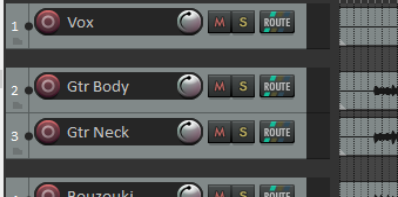
Default track spacer height is 16 pixels: you can change this value in your Options, Preferences, Appearance settings. Spacing is added in arrange view by right clicking over a track’s track panel and choosing Virtual spacer from the context menu. Options are to add a spacer before or after the track, or both, or to remove existing spacers. To add a spacer after or before a number of adjacent tracks, simply select all of the required tracks and right click over any one of their track panels: choose Virtual spacer from the menu, then make your selection as before.
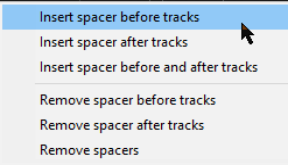
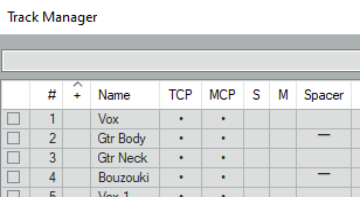
Note that if multiple tracks are selected, the space will be added before the first track in the selection, or after the last track, or both, depending on your menu selection. A quick and easy way of adding or removing spacers between tracks is within the track manager. The track manager is covered in detail in Chapter 12. For now, note that spacers can be added above any track or tracks. Simply click in the Spacer column for each track where you require spacing to be added: click again to remove the spacer (see above left).
If you are moving a track or track selection up or down the track order, you can drop the track below a spacer to place it after the spacer, above a spacer to place it before the spacer, or in the middle of a spacer (as shown here) to show spacers both above and below it.
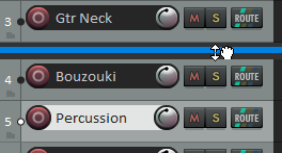
To move a spacer from one track to another, use Left drag up or down. To copy a spacer from one track to another, use Ctrl left drag up or down.