12.18 Track Templates Revisited
Back in Chapter 3 when discussing recording, we mentioned track templates and how useful they can be.
Kind: concept (user-guide-section) Chapter: 12 Managing The Overall Project Source: REAPER User Guide v7.70
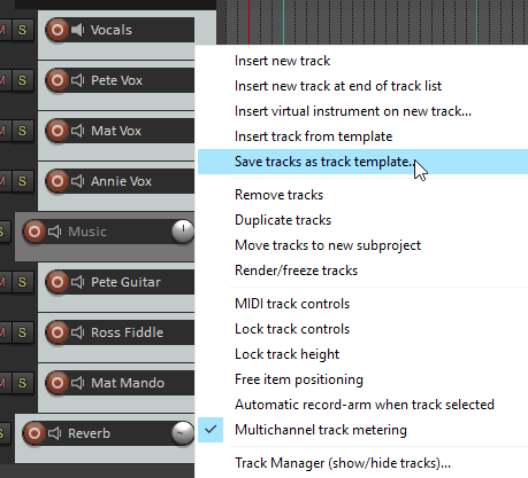
Back in Chapter 3 when discussing recording, we mentioned track templates and how useful they can be. Now that you have discovered a lot more about REAPER, it's worth revisiting this topic. Track templates can be your best friend when you are setting up your projects. A track template can be made up of any track or any selection of tracks. For example, you might have a folder called Drums. This might contain a series of child tracks – Kick, Snare, Toms, Hi hat, etc. – all of which have their own track FX with their own settings, and with volume and pan faders set at their own levels. You could save the entire folder (parent) with its child tracks and all their settings into a single track template called Drum Kit. Items that get included in track templates include track name, track control settings, track properties (color, icon, etc.), track FX (together with their parameter settings), track controls, FX alias names and FX parameter alias names, parameter modulation, FX parameters, sends and receives, and more. To save a track (or selection of tracks) as a track template, choose Track, Save tracks as track template from the main menu. To insert tracks from a track template into a project, choose Insert track from template then Open template from the same menu.