2.29 Multiple Project Tabs
Project tabs allow you to keep up to 1000 projects open at the same time, thus enabling you to jump between them when working on more than one song, or to move or copy media items (audio and/or MIDI) from….
Kind: concept (user-guide-section) Chapter: 2 REAPER Project Basics Source: REAPER User Guide v7.70
Project tabs allow you to keep up to 1000 projects open at the same time, thus enabling you to jump between them when working on more than one song, or to move or copy media items (audio and/or MIDI) from one project to another. To add a new project tab when you already have a file open, use the File, New Project Tab command (Ctrl Alt N). A new tab will be opened (labelled Unsaved), but the previous project will also remain open on its own tab. You can jump between projects simply clicking on the tab. To open a file in an existing project tab, select that tab, then use the File, Open Project command in the usual way. To open it in a new project tab, select this option from the dialog box when opening the project. Right click over any project tab for the project tab menu:
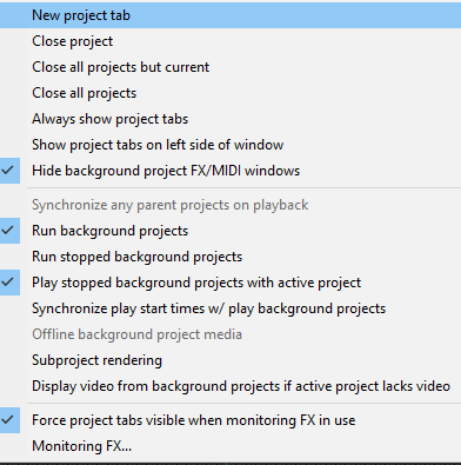
New project tab, This inserts a new tab. A quicker way of doing this is to double click in the project tab area to the immediate right of the last tab. Close project. Closes the current project and its tab - or click on the X at the end of the tab. Close all projects but current. Closes all project tabs except current one. Close all projects. Closes all open projects. Always show project tabs. Shows project tabs, even if only one project is currently open (toggle).
Show project tabs on left side of window.
Toggles displays tabs on left of window.. Hide background project FX/MIDI windows. Ensures that when one of a number of open project tabs is selected, any open FX windows etc. belonging to other open projects are not displayed on top of it. Run background projects. This allows you to play the project in one tab while working on another. Run stopped background projects. Commences playback of projects in tabs not currently selected. Play stopped background projects with active project: Causes background projects (open on other tabs) to be played with the current project. When this is enabled, you can also select Synchronize play start times w/play background projects. This will ensure that all open projects are played/stopped in synch. Offline background project media will set media items in background projects offline. To copy or move tracks and/or items from one project to another, first select the required tracks/items, then press Ctrl C (copy) or Ctrl X (cut). Next, click on the tab of the destination project and press Ctrl V. There is a Subproject rendering submenu with four options – Do not automatically render subprojects, Prompt before automatic render, Defer rendering of subprojects, and Leave subproject open in tab after automatic open and render. Subprojects and these options are explained in Chapter 12.
Display video from background projects if active project lacks video. See Chapter 20.
Force project tabs visible when monitoring FX in use. Displays tabs whenever FX monitoring is active. Monitoring FX … This opens the monitoring FX window.
Tips: Multiple project tabs can be reordered using drag and drop. Also, you can use the File, Close All Projects command to close all open projects at once. Note that the small X button used to close a project tab can be positioned to the left or the right: just drag and drop according to your preference. A project can be opened on a new project tab directly from the File, Recent projects menu by holding down the Shift key while clicking on the project file name. You can open several projects together at the same time, each in its own project tab, provided all the .RPP files are in the same folder. Simply use the File, Open project command, then navigate to the required folder. Use Ctrl Click to build your selection, ensure Open in new project tab is ticked, then click on Open.