19.14 Managing FX Parameters in the Project Bay
In Chapter 12 you were introduced to the Project Bay, including the FX Bay which can be used to help you manage and organize your various track, item and master FX.
Kind: concept (user-guide-section) Chapter: 19 Parameter Modulation Source: REAPER User Guide v7.70
In Chapter 12 you were introduced to the Project Bay, including the FX Bay which can be used to help you manage and organize your various track, item and master FX. The Project Bay also includes a FX
Parameters Bay
whose purpose is to assist you in managing the various FX parameter features discussed in this chapter (and elsewhere). From this single interface you can manage track
controls, envelopes, parameter modulation and control surface assignment for all parameters for all active track, item take and master track FX.
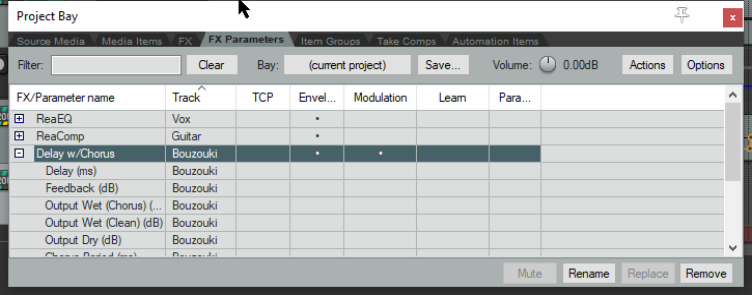
The FX Parameters tab is located next to the FX tab of the Project Bay, displayed by the View, Project Media/ FX command, and shown right. This bay supports the standard project bay features explained in Chapter 12, including (where appropriate) the various commands on the Action and Options button, and from right-click context menus. Here we will focus solely on those aspects that are specific to FX Parameter management.
Whenever any of these features is added to any FX parameter (e.g. from the individual FX window, or from the FX bay), it will automatically be added to the FX Parameters Bay display. In the above example, Band 2 gain on ReaEQ on track 1 uses parameter modulation: this is shown in the Mod column, which also indicates that they are under the control of audio control signals (ACS). The Details column tells us that another parameter on this plug-in, Band 4 gain, is linked to Band 2 gain. The Envelope column shows that two parameters from ReaDelay on track 5 have armed and active automation envelopes. Two parameters from ReaComp on track 2 have had their controls added to the track control panel (or TCP, as indicated by the dots in this column), and one parameter from a Guitar/chorus plug-in (Track 3) has both a track control and an armed envelope. No parameter is shown in the Learn column as being under control surface control. The table below summarises how you the Parameter FX Bay can be used.
In order to do this … You do this ...
Manage or modify an existing parameter's settings
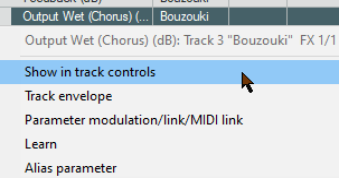
Right-click on the FX name and make your choice from the menu. For track FX, these are Show in track controls, add a track envelope, parameter modulation and learn (to assign to a control surface). For item/take FX, the options are track envelope and learn.
Manage or modify a different parameter on the same or another FX
Click on the + sign next to the plug-in name and select a parameter. Right click over it and choose an option (show in track controls, track envelope, parameter modulation or learn) from the sub-menu, then complete the required PM settings.