21.15 Rendering a Video Project
Rendering a video project is similar to rendering an audio project, but with a small number of options and settings that are specifically video oriented.
Kind: concept (user-guide-section) Chapter: 21 Exporting Files, Mixing Down and Rendering Source: REAPER User Guide v7.70
Rendering a video project is similar to rendering an audio project, but with a small number of options and settings that are specifically video oriented. Most File, Render... dialog options serve the same purpose as for audio projects and do not need any further discussion here. These include render bounds, output files names and directory locations, sample rate, etc. The important differences can be found in the Output format section. Output format: Video (GIF) is an option if your project contains no audio, but mostly you will want to select Video (libav/FFmpeg encoder). You will then need to select a container format: options are AVI, QT/MOV/MP4, MKV or WEBM. Your choice of video codec and audio codec will depend on which container format you have chosen. This will cause audio content to be rendered in your chosen format. You can select your preferred size and frame rate from the available list (see next page). Frames per second range from 24 to 60 and sizes range from 320 x 240 (QVGA) upwards. There are also options to Keep source aspect ratio and Get width/height/ framerate from current video item. Note that the Get width/height/framerate from project option can only be applied if these values have been set in your project settings.
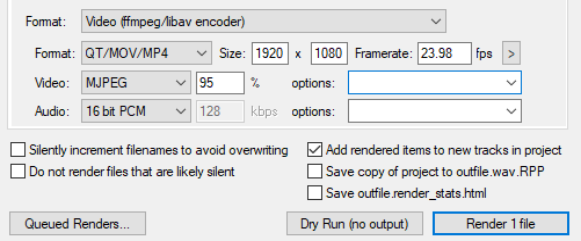
If using the Video (ffmpeg/libav encoder) you will need the Video codec VP8 and Audio codec VORBIS. Note that you do also have the option to render in audio only, or video only: in this case, select None as the codec for whichever one you do not want. This applies to AVI, MP4 and WEBM formats. The remaining options have already been explained. These include the options to Add to render queue for processing later or Render file in real time now. Note: REAPER supports rendering to common video formats on macOS "out of the box" by using AVFoundation. Note that the AVfoundation encoder allows encoding of video only in .m4v or .mov formats. For Windows, REAPER includes a limited version of FFMPEG. If you want or need more video rendering formats you will need to install the full FFMPEG libraries. These are available for download from
https://ffmpeg.org/download.html
The downloaded and unzipped .DLL files will need to be placed in Reaper’s User Pllug-ins folder. This can be accessed via REAPER’s Options, Show REAPER resource path in Explorer command.
Video preferences (Options, Preferences, Media, Video) include the field Video decoder priority. At or near the start of the list you should see ffmpeg (and possibly also vlc). The order of these two decoders will determine which is chosen first for playing video in REAPER (but not for encoding a video). You can edit this order. Sometimes FFMPEG will work better than VLC; you may want to change the order of the video decoders if you are having problems seeing video in REAPER.