5.9 Track Layouts
The theme adjuster will be explained in Chapter 11.
Kind: concept (user-guide-section) Chapter: 5 Project Arrangement Basics Source: REAPER User Guide v7.70
The theme adjuster will be explained in Chapter 11. Meanwhile, in arrange view you can select and apply any of the default layouts available for the track panel, master track panel, mixer panel, master mixer panel, envelope panel or transport bar. Any of the three layouts A, B or C as defined in the theme adjuster can be applied to selected track at either “normal” size, or larger (150% or 200%) or smaller (75% or 50%). Note that depending on your graphics card, some scaling options might not be available. To do this, simply:
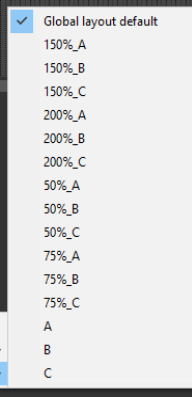
- Make your track selection in the Track Control Panel. Use Ctrl A to select all tracks in the project. 2. From REAPER’s main menu, choose the command Options, Layouts , Track Panel to display a list of available options (see right). 3. Click on the option of your choice. To restore the global default layout to a track or selection of tracks, choose Global Layout Default from this same menu. To choose a layout from a different theme (e.g. REAPER 6), use the Options, Themes command to select a theme. Note that some Track Layout options might not be available.