17.16 Multichannel Parent-Child Relationships
Parent-child track relationships can be defined in the track’s routing window, opened by clicking on its Route button in the track panel.
Kind: concept (user-guide-section) Chapter: 17 More Routing Examples Source: REAPER User Guide v7.70
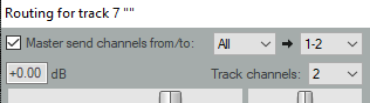
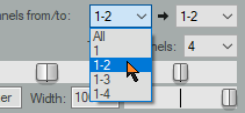
Parent-child track relationships can be defined in the track’s routing window, opened by clicking on its Route button in the track panel. By default, REAPER assumes that you require two channels (1-2) for new tracks, and 2 channels (1-2) for the master. These channels (in this example 1 and 2, because that is all there are) are used to send output from the track to its parent (which in this example is the master, as shown above right). The first of the paired dropdowns determines and indicates the channels used to send output from the track to the master, the second indicates the channels on the master to which they are to be sent. Note that the parent will not always be the master. An example is when the track is contained within a folder. In this case, instead of Master send channels from/to the dialog will display Parent send channels from/to, and the output will be directed to the folder track, not directly to the master. There might be occasions when you will need more than two channels – for example when sidechaining, using parallel FX processing, or if you are producing output in surround sound format. In any such case, you will need to specify the number of track channels required and their relationship to their parent. Example 1: In this case the track has four channels (perhaps reserving channels 3-4 for sidechaining detector input), but only channels 1-2 are to go to the parent (master). We select 1-2 from the first dropdown, and from the second dropdown we select 1-2 as our destination channels in the master.
Example 2
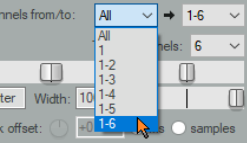
This next example would be suitable for surround mixing in 5.1 format. The master has been defined as having six channels, as have the tracks. Hence, from the first dropdown we can select either All or 1-6 channels: 1-6 is automatically selected for the second dropdown, because once we have specified that we wish to send all 6 channels that becomes the only possible option.
Example 3
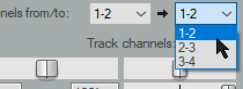
This final example is for a child track within a folder. The track itself has only 2 channels, but the folder has 4 (perhaps for manipulating FX within the folder’s FX chain). Here we select All or 1-2 from the first dropdown: because this track has only two channels, in this case either of these will produce the same result. However, because the parent contains four channel, we must also specify the destination channels on the folder. If you do not make a selection, it will default to 1-2.
Tip: You can change the number of default channels for new tracks to any even number up to 64 on the Advanced page of Project Settings. Here you can also change the default number of parent send channels.