11.10 Master Track Options and Settings
The mixer Master Track main controls have the same functions as the Master Track which can be shown via the Track Master in track view.
Kind: concept (user-guide-section) Chapter: 11 The Mixer and The Master Source: REAPER User Guide v7.70
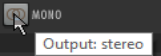
The mixer Master Track main controls have the same functions as the Master Track which can be shown via the Track Master in track view. Note the Output button (shown right):
- Left click on the Output button to toggle between Stereo (gray) and Mono (orange) modes.
- Right click on the Output button to set any one of four available Mono modes – Left + Right, Left only,
Right only, Left - Right.
- Left click on the FX button to display the master FX Chain.
- Right click on the FX button for the Add FX context menu.
- If the Master FX chain is displayed, then you can use all and any
of the FX management keyboard shortcuts that you can use on your tracks.
- Right click on the VU area to display controls to manage the VU
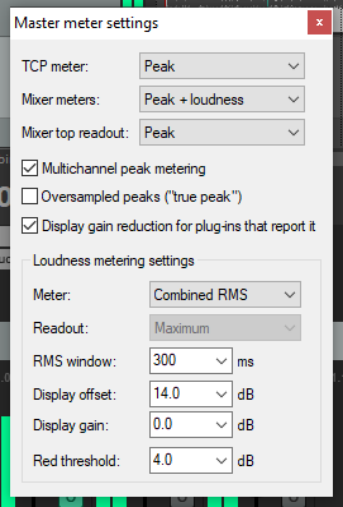
meters display settings (right). Meter options for the master when displayed in the TCP are Peak or Loudness: for the mixer, these are Peak + Loudness (as shown here), Loudness Only or Peak only. Options for loudness meter display are:
RMS (Root Mean Squared) stereo/max or RMS/Max only Loudness Units relative to Full Scale momentary (LUFS-M)/max LUFS-M/LUFS-I (integrated) LUFS-S (short term) /current LUFS-S/ max (loudness range) LUFS-S/LRA
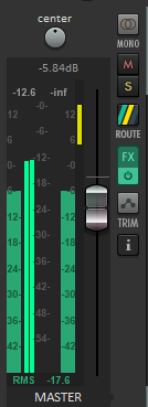
- Optionally, you can choose for gain reduction to be displayed on
the meter (as a vertical bar descending from the top, as shown below right). This can only be shown when you are using a third party or native plug-in (such as ReaLimit) that calculates gain reduction and reports it to the host.
- Readout can be set to LUFS-I or Maximum.
- LUFS, RMS and Peak issues are explained in Chapter 6.
- There is an option to display multichannel peak metering.
- Settings, where appropriate, available for managing the window include RMS window,
Display offset, Display gain and Red threshold.
- This includes the option to display output in multichannel mode (e.g. when working
with surround sound). Disabling this option will ensure a two channel display.
Loudness meter settings include:
Meter display: Stereo RMS, Combined RMS, LUFS-M, or LUFS-S. RMS Window: the length of time (in milliseconds) that should be used for RMS calculation. Display offset: offsets the coloring of the RMS metering, keeping the position constant. Display gain: this applies gain to the RMS meter value: for example, if you set display gain to, say, 6dB, a sine wave will show the RMS value a t a higher meter reading than the peak value. Red threshold: this determines the level at which the meter will turn red. In the example shown above, if you were targeting -14dB LUFS or RMS, then with display offset at 14dB the display would go green at -14dB, and with red threshold 4.0dB, it would go red at -10dB.
Power users: see also Solo Buses later in this chapter.
Note: There is an option in Appearance, Track Meter settings to scale gain reduction from plugins by a level that you can specify.