13.5 Configuring and Accessing the MIDI Editor
Note: Many of the illustrations used in this chapter use the REAPER 4 default color theme.
Kind: concept (user-guide-section) Chapter: 13 Working with MIDI Items Source: REAPER User Guide v7.70
Note: Many of the illustrations used in this chapter use the REAPER 4 default color theme. The instructions and actions are nevertheless accurate for REAPER 5.
The MIDI Editor needs to be opened from an existing item. If you wish to open it with a “clean sheet” then you must first create a new empty MIDI item. To do this, select the required track and (optionally) make your time selection to define the length of the item. Then choose Insert, New MIDI Item from the main menu. By default, MIDI items are loop enabled. You can change this individual items via their Media Item Properties dialog box, or globally on the Preferences, Project, Item Loop Defaults page of your Preferences settings. The MIDI Editor can be opened by any of these methods, using a single MIDI item (either recorded or empty):
- Unless you have changed your default mouse modifier preferences, double-click on the MIDI item, or
- Select the MIDI item and press Ctrl Alt E
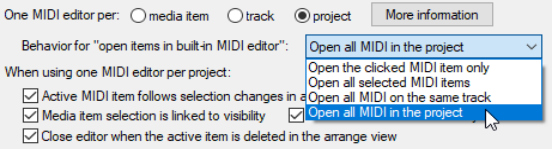
- Right-click on the item and choose Open in built-in MIDI editor from the menu. Exactly how the MIDI Editor will behave when opened will depend on your Preferences settings. Before delving into the MIDI Editor, therefore, we really need to explore these preferences. Use the Options, Preferences command, the choose Editing behavior, MIDI Editor from the list to access the MIDI Editor preferences. The wider range of MIDI Editor preferences is explored in Chapter 22. For now, we just need to focus on these: First, you can specify what by default will be opened with the MIDI editor. This can be clicked MIDI item only, all selected MIDI items, all MIDI on the same track, or all MIDI in the project. The default is All selected MIDI items. Clicking on More information will open a screen explaining in more detail just how REAPER handles these options. You can override the default settings at any time by opening the MIDI Editor by right-clicking on an item (or a selection of items) and choosing Open items in editor, then, from the sub-menu, choosing either Open items in built in MIDI editor, Open MIDI item in editor or Open item copies in built-in MIDI editor.0 You can also determine what is to happen when more than one MIDI item is open: you can choose to have a separate MIDI editor instance per media item, per track or just one editor for the whole project.