12.22 Using Multiple Dockers
In Chapter 2 you were introduced to working with REAPER's docker as an aid to navigating your way thru REAPER's various views and windows.
Kind: concept (user-guide-section) Chapter: 12 Managing The Overall Project Source: REAPER User Guide v7.70
In Chapter 2 you were introduced to working with REAPER's docker as an aid to navigating your way thru REAPER's various views and windows. In fact you are not restricted to just one docker: you can create up to 16 dockers if you wish. In the example shown here, we have two dockers attached to the bottom of the main window and a floating docker. The first docker (bottom left) contains tabs for displaying the Routing matrix, the Mixer, and the Media Explorer. The second is used to display at any time the Screensets window, the Track Manager or the Undo History. The floating window is a third docker, and this contains tabs for displaying the FX chains for four of the tracks in the current project. This is, of course, only an example.
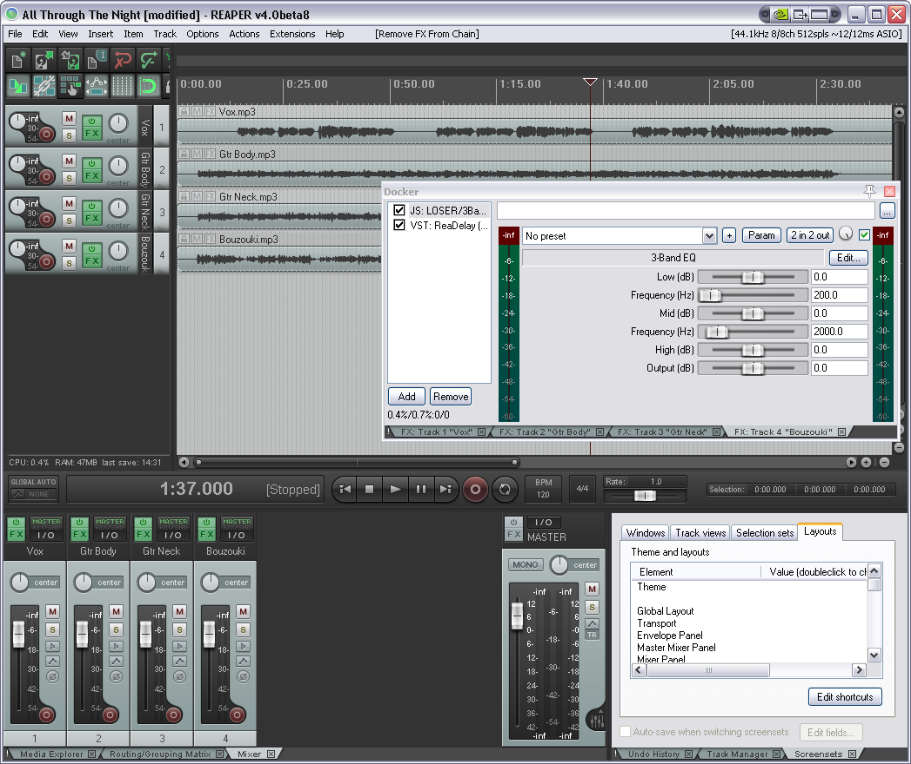
These instructions assume that you are already familiar with the basic techniques for docking and undocking windows, and so on, as explained in Chapter 2. You can attach any docker to the main window in any of the four positions. You can also choose the same position for more than one docker (for example, you might wish to attach two dockers to the right).
To do this … You need to do this ...
Attach a docker to the main window
Click on the ! to display the menu, then choose Attach docker to main window, then select a position (bottom, lefts, top or right).
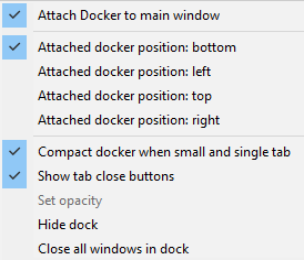
Several dockers can be attached to any position. Click and drag on the boundary between two dockers docked in the same position to adjust the position of the boundary between them (and therefore the relative size of the two dockers.
This menu also allows change to a docker position, e.g. from top to left.
Dock a window
Right-click on the window's title bar and choose the command Dock … in Docker.
To do this … You need to do this ...
Create a new docker
Drag and drop any tab from an existing docker into the arrange view area.
Move a window from one docker to another
Drag and drop the tab from its present docker to its new one.
Reorder tabs in any docker
Drag and drop tabs left or right.
Close a docked tab
Alt Click on tab, or click on tab x button.