8.13 Fixed Media Item Lanes
This section requires an understanding of REAPER’s recording techniques, including layered recording (see sections 3.1 to 3.5 and 3.14.
Kind: concept (user-guide-section) Chapter: 8 Managing, Comping and Editing Takes Source: REAPER User Guide v7.70
This section requires an understanding of REAPER’s recording techniques, including layered recording (see sections 3.1 to 3.5 and 3.14. Some understanding of REAPER’s legacy takes system is also recommended.
Media item lanes offer you a way of working that goes beyond the limitations of REAPER’s basic track structure. By default, media items will fill the entire vertical space of the track on which they are recorded. If the media items overlap, they are auto-arranged vertically based on your media item properties settings. Media items that overlap interact during playback according to the project settings (Project settings, Advanced, Item mix behavior), preferences settings (Preferences, Project, Item fade defaults, Preferences, Project, Track/Send Defaults (shown right), and Preferences, Appearance, Zoom/Scroll/ Offset), track settings, and/or media item properties for item mix behavior (shown above right). If media item and project settings differ from each other, media item settings will apply. With free item positioning you can freely position and resize media items within the vertical space of the track. However, this feature is not designed with project building in mind. Fixed media item lanes offer you various tools and techniques for building projects. They can be used to record, layer, edit, manage and comp material. They are effectively tracks within tracks, up to 256 lanes within a single track:. REAPER then gives you multiple options to treat these tracks individually, linked by comping, or in other ways related. To give you some idea of where we’re eventually going here is a relatively simple example::

Look at the above illustration. Notice:
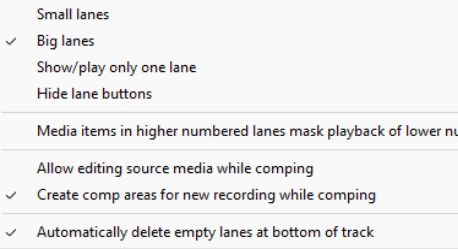
The track shown comprises three lanes, labeled in a lanes panel (top to bottom) C1, 1 and 2. Lanes 1 and 2 are two takes of the same tune. Lane C1 is a work in progress comp of the best parts of lanes 1 and 2. To the right of the track panel a new section has been added: this shows a labeled button for each lane (in this example, three buttons) as well as housing its own right-click context menu. Those options whose initial defaults are determined by your preferences settings can here be over-ridden for individual projects.