13.31 MIDI Editor Mouse Modifiers
Opens the mouse modifiers page of your preferences window.
Kind: concept (user-guide-section) Chapter: 13 Working with MIDI Items Source: REAPER User Guide v7.70
Opens the mouse modifiers page of your preferences window. Here you can select actions to be assigned to mouse behavior in various contexts. This is discussed later in this chapter and in Chapter 15.
Customize menus/toolbars ...
Opens the Customize Menus/Toolbars window. See Chapter 15.
The View Menu
Filter events..., Quantize..., Humanize..., Transpose …
Opens one of these dialog boxes, which are individually discussed elsewhere in this chapter.
Event properties ...
Opens the Note properties dialog box. This topic is covered later in this chapter. Note properties now share this common dialog box with other events including control change, pitch, and channel pressures.
Raw MIDI data
Opens a window displaying raw MIDI data for currently selected item.
Mode: piano roll
Displays a standard, white/black piano key view. This is the mode most commonly used for MIDI editing.
Mode: named notes
Replaces the Piano Roll view with note names. Note: Only works when using a VSTi that reports note names, such as Fxpansion's BFD. Check the REAPER forum to see if a note namer plug-in has been posted for the VSTi you want to use. For example there are EZDrummer note namers available.
Mode: event list
Displays the event list. This is explained later in this chapter.
Mode: musical notation
Displays MIDI notes in musical notation view. See next chapter.
Piano roll notes
Displays a sub menu of Rectangles, Triangles and Diamonds to determine how notes are displayed. There are toggle options to Show velocity handles on notes, Show velocity numbers on notes, Show note names on notes, Show notation text on notes and/or Show velocity and names only on active media item.
Color notes by
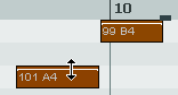
Selects the criteria used for coloring notes. Options are Velocity, Channel, Pitch, Source (using color map), Track, Media item and Voice. When coloring by track or media item, options are Use theme color for any or all of selected note body, selected note border, unselected note body, and unselected note border. The MIDI editor actions list includes the action View: Load note color map from file, as well as options to set color map by track or by media item, as you prefer. Show/hide note rows.
Displays a sub-menu with four options: Show all note rows, Hide unused note rows, Hide unused and unnamed note rows or Show custom note row view. Hide options exclude piano roll view.
Show note names on piano roll keys
Toggle option, on or off. Default is on.
Piano roll ruler
Options to display or hide project markers, project regions and/or tempo/time signature markers on the piano roll ruler. These are displayed above the ruler, and tempo/time signature markers can be edited by double-clicking on them. You can also right-click for a context menu.
Time format for ruler, transport, event properties
Gives you the choice of Measures.Beats.100ths or Measures.Beats.PPQ, option for Ruler in Measures.Beats only. Also an option to Display project H:M:S[:F].
Piano roll timebase
Sets the timebase for the piano roll. Options are Project beats (the default), Source beats (from media source item), Project time, or Project synced (which syncs the piano roll timebase to arrange view). For more information, choose Timebase help from this menu. If you are opening several MIDI items in a single MIDI editor, then choosing source beats can cause some MIDI editor functions to be disabled.
Notation view options
Displays a sub-menu of various options that are only relevant when working in notation view. These are explained in the chapter immediately following this one.
The Contents Menu
Track List/Media Item Lane
Toggles the display of these panels which list and display tracks and MIDI items respectively.
One MIDI editor per
Opens sub menu where you can specify one MIDI editor window for each item, each track, or the project.
Behavior for “open items in built-in MIDI editor”
Select whether opening items in arrange view, using the media item menu, should Open the clicked item only, Open all selected MIDI items, Open all MIDI items on the same track as the clicked item or Open all MIDI in the project.
Options when using one MIDI editor per project
Options are Active MIDI item follows selection in main view, Media item is linked to visibility and Media item selection is linked to visibility. There is also an option to Close editor when active media item is deleted in arrange view. See section “Managing Multiple MIDI Tracks and Items.” All media items to be editable in notation view: a toggle option.
List of project tracks/MID0I items
This menu lists all tracks which contain MIDI items and all items themselves. A tick indicates that the item is currently open and the active item. Select an item from this menu to open it in the MIDI Editor window, closing all other items: hold Shift while doing so if you do not wish to close all other items.