13.34 In-Line MIDI Editing
To use the in-line MIDI editor im arrange view, first select the item then use the shortcut key E or from the right click enu choose Open items in editor then Open in in-line editor.
Kind: concept (user-guide-section) Chapter: 13 Working with MIDI Items Source: REAPER User Guide v7.70
To use the in-line MIDI editor im arrange view, first select the item then use the shortcut key E or from the right click enu choose Open items in editor then Open in in-line editor. If necesssary, increase track height.

REAPER’s main MIDI Editor is recommended for serious editing. However, many common tasks can be carried out using the in-line editor which lets you edit a MIDI item from within arrange view. The in-line editor opens with piano roll view. Hover the mouse over the bottom border below the virtual keyboard to see a double headed vertical arrow. Drag up to display the cc lane. This will display whichever cc lane was displayed last time this item was opened in the MIDI editor. Right-clicking over the editing area opens a menu showing which editing tasks can be carried out with the in-line editor. In summary, the following types of commands and actions are supported within the in-line MIDI editor:
-
Note editing mouse actions, including change length, change velocity, marquee, move, delete and insert.
-
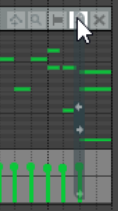
Most commands on the MIDI Editor’s Edit and View menus, including quantize and humanize. When working with the in-line editor, any keyboard shortcuts and custom actions that you have defined in the main MIDI Editor will apply, along with any defaults. For example, PageUp and PageDown will zoom vertically in and out within the in-line editor. You can run your MIDI Editor custom actions within the in-line editor. The inline editor also displays a small toolbar in its top right corner. From left to right, the function of these tools is:
-
The Move CC with events toggle tool: serves the same purpose as its equivalent tool in
the MIDI Editor window.
- The Show/Hide magnifying glass toggles between Show all note rows, Hide unused
and unnamed note rows, Hide unused note rows and Custom note row view.
- The Item Style tool: toggles between rectangle, triangle and diamond note display.
- The Vertical Scroll/Zoom tool. Click and hold on this and drag vertically up or down to
scroll vertically up and down, left and right to zoom vertically in and out (see example, right). You can double-click on this button to zoom to contents.
- The X tool. This closes the in-line editor and restores normal display. The MIDI Editor and In-line Editor are designed for editing your MIDI events. Many of the item editing tasks, functions and activities explained in Chapter 7 can also be used on MIDI items . For example, in arrange view items can be dragged and dropped, split, copied, muted, grouped in selection sets, locked and so on. Plug-ins can be added to item FX chains. Selecting a MIDI item in arrange view and pressing F2 will display its Item Properties window where you can shift pitch, change play rate, loop enable/disable, and do much more.