2.1 Opening an Existing Project
In this chapter you will be shown the basic essentials of working with a project file in REAPER.
Kind: concept (user-guide-section) Chapter: 2 REAPER Project Basics Source: REAPER User Guide v7.70
In this chapter you will be shown the basic essentials of working with a project file in REAPER.
Track Panel and Mixer Panel Layouts. By default, REAPER uses Layout A for both panels. With this layout, when the mixer is open, some track panel controls are not visible: when it is closed, all track controls are visible
To open an existing REAPER Project File, use the File, Open Project command, or the keyboard shortcut Ctrl O. As with other Windows Apps, you will need to navigate to the appropriate folder to find your project. Recently used projects can more easily be opened using the File, Recent Projects command. This causes a list of up to the last 100 recently used project files to be displayed. You can then select any file from that list.
The General page of your Options, Preferences window offers a number of options. At this stage there should be no need for you to dig deeply into these, but be aware that they are there. In particular, you can:
●Select a language other than English ●Manage Export and Import configs, to copy REAPER prefs and settings between computers. ●Startup settings. Options are to open the Last project tabs (projects open when REAPER was closed), or a New project or to Prompt every time. ●Specify whether to
Automatically check for new versions of REAPER
on startup. ●Whether to Create a new project tab for projects opened from explorer/finder. ●Whether to Show splash screen on startup and if so, whether to Skip the animation. ●Whether to Check for multiple instances of REAPER on startup. If enabled this will prevent you from opening another instance of REAPER when one is already open.
- Determine number of files shown on the Recent project list and what to display (e.g. file name only, file
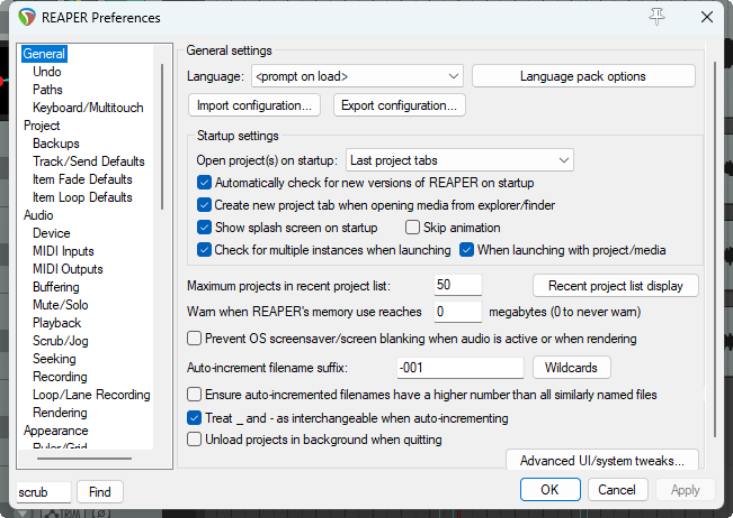
name and path, with options which include Clear recent list and Remove missing projects from list).
- Whether to warn you when REAPER’s memory usage reaches a specified level.
- Option to Prevent OS screensaver from blanking when audio is active or when rendering.
- Optionally, format to use when auto-increment file names ii enabled. Also to Ensure auto-incremented
filenames have higher number than all similarly named files.
- There is an option to Treat _ and – as interchangeable when auto-incrementing.
- Option to automatically Unload projects in background when quitting. Notice too the command Continuous scrolling on REAPER’s main Options menu. If disabled (the default), the play cursor will scroll from left to right during playback. If enabled, this cursor will find and then remain stationary in the center of the arrange window during playback, while the media items scroll across the screen.
The examples used throughout this guide use the project file All Through The Night.RPP. This can be downloaded from www.cockos.com/wiki/index.php/REAPER_User_Guide.