7.28 Free Item Positioning
Free item positioning enables you to move your media items around freely within a track or tracks.
Kind: concept (user-guide-section) Chapter: 7 Managing and Editing Media Items Source: REAPER User Guide v7.70
Free item positioning enables you to move your media items around freely within a track or tracks. This allows, for example, two or more items to play simultaneously or to overlap on the same track:
- Select the track (or tracks) for which you wish to allow free item positioning. 2. Right click over the Track Control Panel. From the menu, choose Free item positioning.
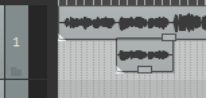
These illustrations demonstrate an example of this. In the first image (left) we have a Lead Vocal and a Harmony Vocal on different tracks. We might find it convenient to place these together on the same track. In the second image (right) we have enabled Free Item Positioning for the lead vocal track. Notice that there is a small handle (shown by the mouse cursor) which can be used to adjust the height of this media item. In the third image (below left) the media item for the harmony vocal has been dragged and dropped into the lead vocal track (with Shift key held down). When this track is played, both media items will play together. In
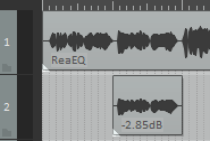
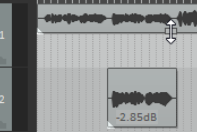
fact, in this example, the previous harmony vocal track (now empty) can now be deleted.
Each item is independent of the other. Either or both can be muted/unmuted, have FX added, and so on. You can use the Media Item Properties dialog box (F2) or the right-click menu for this. Note 1: Free item positioning can be made the default for all new tracks by enabling it at Options, Preferences, Track/Send Defaults. Note 2: If auto-crossfade is enabled, media items that overlap vertically will crossfade. Otherwise, the vertical positioning of media items does not affect playback. The preferences for item mix behavior are ignored; items always mix on free item positioning tracks.
Tip: As you move items around in free item positioning mode you can sometimes find that items are placed awkwardly or untidily: this can make editing difficult. If this happens, select the items, right-click and choose Item processing, Auto-reposition items in free item positioning mode.