6.3 FX Browser Options
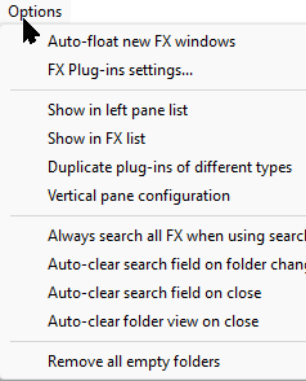
The Add FX window Options menu is shown here.
Kind: concept (user-guide-section) Chapter: 6 Managing Track and Item FX Source: REAPER User Guide v7.70
The Add FX window Options menu is shown here. Commands include: Auto-float new FX windows. If enabled, FX will be opened and displayed in their own separate window when they are added. FX Plug-ins settings... Displays Options, Preferences, Plug-ins settings page (see Chapter 22). Remove all empty folders. Removes all empty folders. Show in left pane list. Displays a sub-menu to select plug-in categories to be displayed in the left pane of the FX browser window.
DX, DXi, VST, VSTi, VST3, VST3i, AU, AUi, JS, Rewire, Cockos Instruments all virtual instruments will be listed as well as in their native folders (VSTi, DXi, etc) if these are also selected. Recent causes all plug-ins recently used to be displayed here, as well as in their native folders. VST folders causes all folders with VST plugins to be listed in the left pane under My folders. Categories causes plug-ins also to be displayed grouped by function (e.g. Delay, EQ, Reverb, etc.). Developers enables plug-ins also to be grouped by developers. FX Chains will cause FX chains to be listed.
Show in FX list
In the displayed FX list you can show any Default preset (along with the FX name), FX shortcuts, descriptions, or file names, or both for JS FX, the Video processor (see Chapter 20), and/or plug-ins whose name begins with a #. Renaming a plug-in to begin with a # hides it in the FX browser's FX list. Always search all FX when using search field. If enabled, all FX will be searched, even if one type or category has been selected in the left pane. There are also two Auto clear search field (filter) options – when you change your selected folder, and/or when you close the FX browser. Enabling the option Auto-clear folder view on close ensures that the next time the Add FX browser is opened All Plugins will be selected in the left panel.