17.14 Routing to/from Other Applications with ReWire
All of the examples up to now have involved routing audio or MIDI data within REAPER.
Kind: concept (user-guide-section) Chapter: 17 More Routing Examples Source: REAPER User Guide v7.70
All of the examples up to now have involved routing audio or MIDI data within REAPER. We're now going to take a look at how your music can also be routed to and from other applications. For users of ReWire, REAPER supports ReWire (2.6). ReWire is jointly developed by Propellerhead Software and Steinberg to allow applications to share audio, MIDI and synchronization data. Audio and MIDI data are transferred between the two applications in real-time, allowing you to use the features in each application as if they were one. See: http://www.propellerheads.se/technologies/rewire/ ReWire functionality is automatically installed along with REAPER on the MacOS. Windows users need to make sure when installing REAPER that they have ReWire selected and enabled on the Choose components page of REAPER's Install wizard under Additional functionality. In a ReWire session, the first application acts as the host, and the second application acts as the client. The client receives and sends signals via the host application. REAPER can be used as either host or client.
The ReWire system uses mixers, panels, and devices. Mixers are the host applications which typically do the sequencing at one end and the final mixdown at the other end. A device is a dynamic link library that only generates sound but has no user interface of its own. A panel is a graphical interface for setting the parameters of one device. For example, you might use REAPER as your mixer and Propellerhead Reason as your synthesizer. In this case Reason would provide device and panel to REAPER, which could then send midi commands, sync timing and mix Reason's output into its own effects chains.
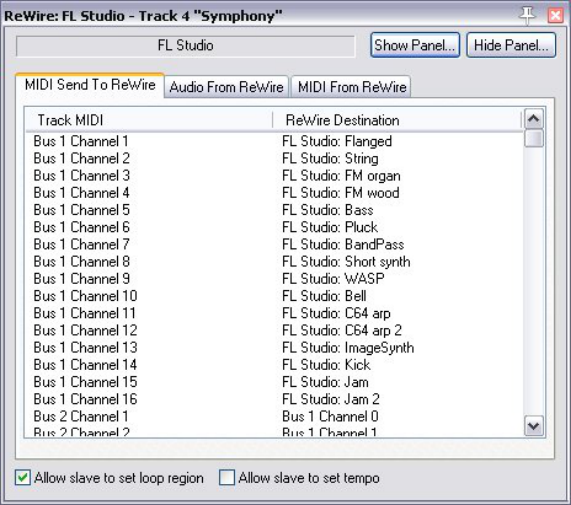
ReWire can be used with any track(s) in a REAPER projec0t. Display the track's FX chain and select ReWire from the list of plug-in categories (left column). This will display (in the right column) a list of all ReWire enabled applications that have been installed on your computer. Select the application (“client”) that you wish to use – for example, this might be ReWire Ableton Live, Rewire Reason or (as shown here) ReWire FLStudio.
Selecting your ReWire enabled application will cause the application to be opened. You can use ReWire to send MIDI data to the client application (as shown here), to route audio from the client application into REAPER, or to route MIDI data from the client application into REAPER.
By default, the tempo for both applications is set by the ReWire host. However, there is an option in REAPER's ReWire window to allow the client application to set the tempo.
Note 1: There is an option (Options, Preferences, Audio) to Close audio device when inactive and REWIRE devices are open.
Note 2: REAPER can be opened in client mode from the Windows Start, All Programs menu, or by first opening the host application and by selecting REAPER as the client application there. You can also (in both OSX and Windows) ReWire REAPER to itself by choosing Rewire REAPER from the Add FX window. For more information about using ReWire with REAPER see: wiki.cockos.com/wiki/index.php/ReWire