18.18 Envelope Edit Mouse Modifiers
After working with envelopes for a while you might wish to consider changing some of the default mouse modifier settings to suit your personal workflow.
Kind: concept (user-guide-section) Chapter: 18 Automation – Envelopes and More Source: REAPER User Guide v7.70
After working with envelopes for a while you might wish to consider changing some of the default mouse modifier settings to suit your personal workflow. There are several contexts relevant here – Envelope lane (left drag and double-click), Envelope segment (left drag and doubleclick), and Envelope point (left drag and double-click). Some examples of default behaviors are listed below: see also Options, Preferences, Mouse Modifiers
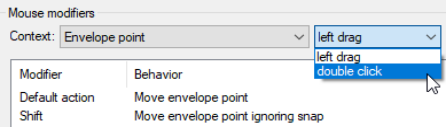
Envelope point left drag
Left drag Move envelope point Shift left drag Move point ignoring snap Ctrl left drag Freehand draw ignoring snap Shift Ctrl left drag Move point on one axis only Alt left drag Delete envelope point Ctrl Alt left drag Move envelope point vertically
Envelope segment left drag
Left drag Move ignoring time selection Shift left drag Insert envelope point Ctrl left drag Freehand draw ignoring snapping Shift ctrl left drag Move envelope segment (up/down) Alt left drag Edit envelope segment curvature Shift alt left drag Move preserving edge points Ctrl alt left drag Move envelope segment (fine)
Envelope point double click
Double click Reset point to default value Ctrl double click Open envelope point editor.
Envelope lane left drag
Shift left drag Insert envelope point Ctrl left drag Freehand draw ignoring snap
Envelope segment double click
Alt double click Reset segment curvature
Any of these default behaviors can be changed in the Preferences, Mouse Modifiers window. For example, if you manually add points to envelopes a lot you might wish to change the default behavior for Envelope double-click from Reset point to default value to Envelope: Insert new point at current position. You might wish to set Move envelope point horizontally as one of your envelope point modifier instead of just Move envelope point. Also, by default, double-clicking on an envelope's control panel will select all points on the envelope.