6.2 Using Boolean Search Filters
Search filters can be used to help find exactly what you are looking for.
Kind: concept (user-guide-section) Chapter: 6 Managing Track and Item FX Source: REAPER User Guide v7.70
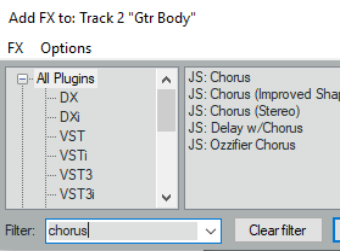
Search filters can be used to help find exactly what you are looking for. In this case, you can filter the FX list to show only those items which include a specified string, such as verb or eq. The techniques explained in this section can also be used elsewhere in REAPER where filtering is available – for example, the media explorer, the track manager, the actions list, the region/marker manager, the project bay, envelope color overrides and the theme development tweaker. By entering a text string in the Filter list text box in the bottom left corner of the Add FX window (also known as the FX browser), you can display a list of those list items which match your criteria. Before doing this, you can select either All Plugins from the list of plugin folders, or any particular folder if you wish to restrict your search to that folder. In the example shown above, we have applied the text string chorus as a filter, in order to see what chorus plug-ins we have available. The search string is not case sensitive. You can search for more than one string within the same names. For example:
eq stereo will find all plugins with both eq and stereo anywhere in their name, regardless of the order in
which they appear. eq AND stereo would produce exactly the same results. Remember, you can rename individual plug-ins. This might make your searches more useful. The filter also supports other Boolean search terms notably OR and NOT, and the use of parentheses, e.g.:
comp OR lim finds and lists all plugins with comp or lim in their name. eq ( cockos OR melda ) finds all Cockos and Melda plug-ins with eq in their name. You must leave a space both before and after the parentheses. cockos ( eq OR comp ) finds all Cockos plug-ins with eq or comp in their name. blue cat NOT ( flange OR phase ) finds and lists all Blue Cat plug-ins except those with flange or phase in their name. ( chorus OR delay ) NOT ( DX: OR JS: ) finds all effects with chorus or delay in their name except Direct X and JS ones. There are some additional techniques that you can use to make your searches more finely tuned. Enclosing a search string in quotes will find only those plug-ins where the text is matched exactly. For example:
“sony noise” would find Sony Noise Gate but not Sony Express FX Noise Gate. Likewise “reaverb” would find ReaVerb but not ReaVerbate. Typing a space immediately after the opening quotes mark will limit the search to those items where the specified string is at the very beginning of a word. For example:
“ volu” will find plug-ins which include the word volume but not convolution.. Similarly, typing a space at the end of the string will only find those items where one of the words in the FX name ends with that string. Starting a search string with ^ will find only those items whose name begins with the specified string, and using a $ at the end of a string will find only those names that end with that string. For example, when working in the media explorer, using ^blues as a filter would list only those items whose names begin with blues. Similarly, in the track manager, a filter such as guitar$ would display tracks with names such as lead guitar or rhythm guitar but not guitar solo. The Clear Filter button can be used to remove the filter and restore all plug-ins to view. You also have two options (on the Options menu – see below) which if enabled will ensure that your filters are automatically cleared for you. These are Auto clear search field on folder change and Auto clear search field on close. This latter option refers to closing the FX browser window, not closing REAPER. REAPER will remember your previous filters. You can access it from the filter drop down list, by clicking on the down pointing arrow located on the edge right of the Filter list box.
In REAPER's Plug-ins Preferences (Chapter 22) there is an option to apply a global filter to all browser views.