18.38 Razor Editing with Automation Envelopes
Razor editing lets you move or copy one part of an envelope to another envelope by dragging it.
Kind: concept (user-guide-section) Chapter: 18 Automation – Envelopes and More Source: REAPER User Guide v7.70
Razor editing lets you move or copy one part of an envelope to another envelope by dragging it. Razor selection and razor editing techniques are explained in Chapter 2, including a table of the various options and basic mouse modifiers. In addition Razor edit area mouse modifiers when working with automation items or envelopes are:
Shift Alt left drag
Move areas ignoring envelope type and snap.
Ctrl Alt left drag.
Copy areas ignoring envelope type.
Shift Ctrl Alt left drag
Copy areas ignoring envelope type and snap.
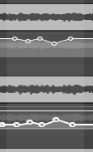
Here is an example. We might want to ensure that during a section of the song two tracks are automatically panned to move in opposite directions, i.e. against each other.
-
Panning is automated on the first envelope and the area is defined with Alt right drag.
-
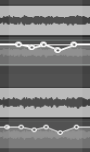
Ctrl left drag is used to copy the segment to the other track with snap settings applied.
-
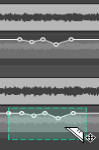
Select all points in time selection is applied from the context menu of the lower envelope.
-
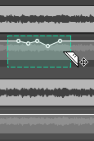
Invert points is now chosen from the same menu.
Note the option on the envelope tool right click menu Razor edits in media item lane affect all track envelopes.
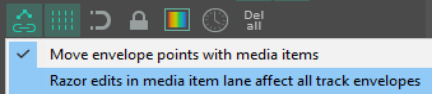
With this option disabled, you can select and move or copy a segment of a media item, or any envelope, or envelopes attached to that media item, or any combination of these. Hidden envelopes will be excluded from the selection.
With Razor edits in media lane affect all track envelopes enabled, the media items and any/all associated envelopes are essentially locked together when any one is being razor edited. Envelopes will be copied with media items from one item to another even when these envelopes are hidden in the source item and do not already exist on the destination item.
The destination envelopes can be automatically displayed or not, based on the envelope display preferences option Automatically show affected envelopes when moving media items across tracks. However, if there is no matching envelope at the destination (for example if you have an EQ low pass frequency envelope on the source track but that FX does not exist on the destination track) then that envelope area will not be copied. The only difference between razor edits and media item moves in this mode is that with razor edits, if there are no matching envelopes at all on the destination track -- in other words if the edit would result in the entire razor edit being discarded -- then edit will not be allowed. Your mouse modifiers Razor edits area left drag section include available options to move or copy area ignoring envelope type. You could, for example, assign these to Shift alt right drag and Ctrl alt right drag respectively. This, for example, would allow you to copy a section of an envelope from (say) a volume envelope to a trim volume envelope. This feature is specific to razor edits. In this mode, areas are moved based on what you see is what you get. It would not make sense to automatically create envelopes in this mode. If you were moving one envelope razor edit area, REAPER would have to create literally every possible envelope on every track that you moved across.
Make yourself familiar with the various mouse modifiers outlined in the razor edits section in Chapter 7. It is also important to remember that your ripple editing settings will affect how razor editing behaves when copying or moving automation.
Note: Razor editing can also be applied to envelopes on the master, except for tempo envelopes.
Examples: #1: With Razor edits affect all track envelopes disabled ….
With this option on, you could do 1, but not 2 or 3. Hidden envelopes would also be included.
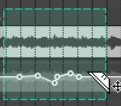
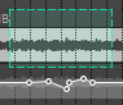
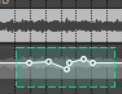
2 … or just this …
3 … or this.
1 ...you could select and move or copy this ….
#2: Again, with Razor edits affect all track envelopes disabled , using a mouse modifier assigned to Copy area ignoring envelope type and with ripple editing off ...
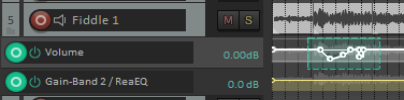
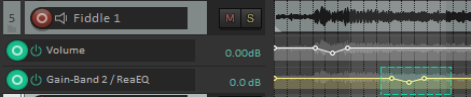
… an envelope segment can be selected ... … and copied to a different envelope type …
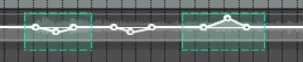
… or you could select multiple segments of an envelope and copy them to another envelope of the same type, whether this option is on or off.
Razor Edit Envelope Mouse Modifiers and Actions
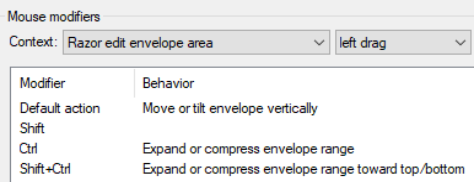
Razor editing as much as any other feature of REAPER is something that different people will want to use in different ways. Core razor edit mouse modifiers are covered in Chapter 7. REAPER also includes a Razor edits envelope, left drag context, as shown (right). These actions apply only to envelopes in lanes.
Move or tilt envelope vertically: moves selected segment of envelope up or down. Expand or compress envelope range: increases (up) or decreases (down) distance between highest and lowest point in the selection.
Expand or compress envelope range towards
top bottom: similar to Ctrl left drag but also moves entire selection up or down.
Customize Mouse Modifier Preferences
These can be found in your Options, Preferences window Double click in the Behavior column for any mouse modifier for a list of alternative tasks that can be assigned to that modifier.
Browse the Actions List
REAPER’s Action List includes literally dozens of razor edit actions that can be assigned variously to the contexts Arrange view right drag, Media item bottom half left click, Media item left drag, Media item left click, Razor edit area left click, Razor edit area left drag and Track left drag. For example, if you need to copy a series of automation items or envelope segments within a project you could run an action to set the mouse modifier for Razor edit area left drag to Copy areas on one axis only ignoring envelope type, then at the end of that session reset it to its original default Move areas. To explore other options, open the Actions List and search for the word razor.
Tip: Check out also the earlier section on Power Editing for more tips about working with razor edits.