19.9 Parameter Modulation Under Parameter Control
By linking parameters you can use dynamic changes in one FX parameter to directly control another.
Kind: concept (user-guide-section) Chapter: 19 Parameter Modulation Source: REAPER User Guide v7.70
By linking parameters you can use dynamic changes in one FX parameter to directly control another. In this next example you will do just this, linking a track's EQ gain with its compressor threshold, so that whenever the compression threshold is raised a little more warmth is automatically added to the track.
- Open the file All Through the Night MOD1A and save it as All Through the Night MOD1B. 2. In the vocal FX chain, add an instance of ReaEQ (after ReaComp). Select Band 2. Set the Frequency to
about 180 Hz, the bandwidth to about 2.00 octave and the Gain to 0.0 dB. 3. With the ReaEQ window open, click on the Band 2 Gain control, then the Param button, then Parameter
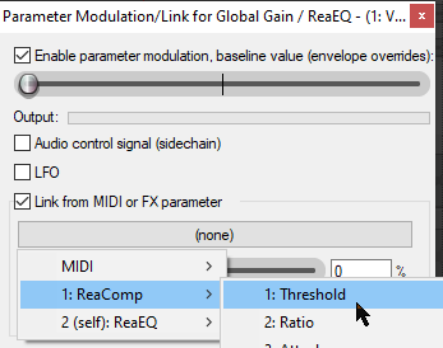
modulation/MIDI link to open the Parameter Modulation window. Select the option Link from MIDI or FX parameter. 4. Click on the large button below the Link from MIDI or FX parameter option and choose ReaComp
then Thresh (as shown here). 5. Before playing the song, adjust the baseline value fader to restore the Gain on Band 2 in ReaEQ to 0 dB. 6. Set the Offset fader to 10% and the Scale to +100% (see notes below). 7. Play the song and save the file.
The two controls Offset and Scale control the extent to which the controlling parameter (in this example the compressor's threshold) modifies the controlled parameter (in this case the EQ band gain). The Offset fader increase (to the right) or decreases (to the left) by a specified percentage the value of the parameter being modified. The Scale fader ranges from 100% to +100%. At -100% the relationship between the controlling parameter (threshold) and the controlled parameter (EQ band 2 gain) will be 100% negative: the EQ gain will be lowered exactly as the threshold is raised. At +100% the opposite will occur. If you just want to control the whole range of the target parameter then just set the Baseline [B] slider to the left (0%), Offset [O] to 0% and Scale [S] to 100%. To control part of the target parameter's range, first work out what that part is in % terms. For example, consider an EQ gain band with a range of -24 dB to +24 dB and you wish to control the value between -12dB and +12dB. The percentage range will be from 25% to 75%. Be sure that you can see the target parameter on the FX's GUI and the Parameter Modulation window: set the Scale [S] value temporarily to 0%. Drag the Baseline [B] slider 25% to the right until the target parameter changes to -12dB. Set the Scale to 50% (that is 75% - 25%). That's it. There is no need to adjust the Offset. In fact, you won't need the Offset often. It can be used to slide the range up or down. Please note that the actual change is determined by the Offset % multiplied by the Scale %. Let's look at [B] = 50%, [O] = 0% and [S] = 25%, this results in a range of 50% to 75%. If we now set [O] to -40% the range changes to 40% to 65% the change is [O] x [S], that is -40% X 25% = -10%).