6.18 The JS Analysis Loudness Meter
Elsewhere in this guide you will be introduced to various JS plug-ins.
Kind: concept (user-guide-section) Chapter: 6 Managing Track and Item FX Source: REAPER User Guide v7.70
Elsewhere in this guide you will be introduced to various JS plug-ins. One worth looking at now is the Loudness Meter. This can display visual feedback about LUFS (loudness unit full scale), RMS (root mean squared) and True Peak loudness. Insert it into any track or master just as you would any other plug in. Peak: Highest actual level of the audio signal.. True peak: Highest level of the oversampled signal. Intended to estimate the highest level the signal could reach after resampling to any sample rate. LUFS: The loudness of the digital signal, after applying filters intended to adjust for how humans perceive different frequencies. LUFS-M: Momentary loudness measured over a 400ms window. LUFS-S: Short-term loudness measured over a 3 second window. LUFS-I: Integrated loudness of the entire audio signal, beginning to end. LRA: Loudness range, the dynamic range of the entire audio signal, measured as the statistical difference between the lowest and highest LUFS-S measurements.
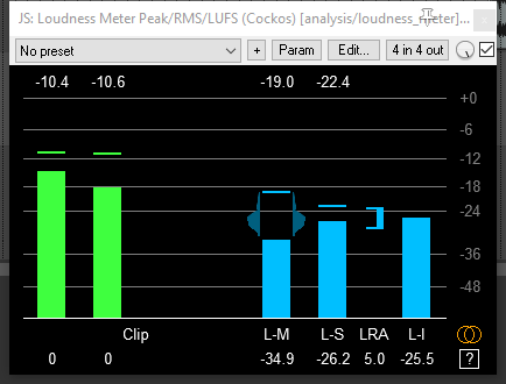
Click on the settings (question mark) symbol (bottom right) to toggle display of options/controls, including what data to display and y-axis scaling and text size. See also Chapter 11. The various parameters can also be automated (see Chapter 18). There is also an option for output loudness values as automation to be inverted. The small orange symbol above the ? can be used to toggle between stereo (default) and mono analysis. If you’re unsure as to what to display, leave the settings at their defaults. The Actions List (see Chapter 15) includes several actions to calculate and display the loudness of the master mix, selected tracks, and/or selected items, according to various criteria. Use the search filter calculate.