15.10 Keyboard Shortcuts for Recording
In this section you will be shown how to create keyboard shortcuts to use when recording.
Kind: concept (user-guide-section) Chapter: 15 Customization: Actions, Mouse Modifiers, Menus and More Source: REAPER User Guide v7.70
In this section you will be shown how to create keyboard shortcuts to use when recording. In this simple example you will create two keyboard shortcuts specifically for use when you are recording. You will have noticed that when you stop recording, REAPER by default prompts you to confirm whether you want to save or delete the new media items. The Main (alt recording) section of the Action List gives you the opportunity to bypass this prompt by assigning keyboard shortcuts for those options that you use most often – Save All and Delete All. As with the earlier examples, it is only an example. You'll probably find the exercise worth completing even if you don't want to keep these keyboard shortcuts assignments.
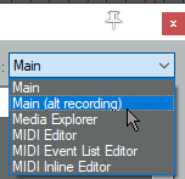
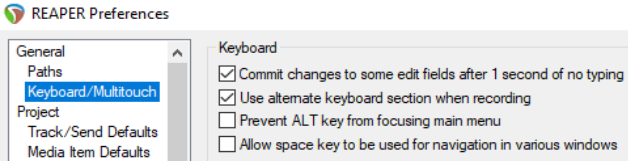
- In the Actions List, select the section Main (alt recording) – see right. 2. In the filter box type stop save. You should see the action Transport Stop (save all recorded media). Select this action. 3. Click on Add … and type lower case S then click on OK. 4. Clear the filter box, then type in it: stop del 5. Select the action Transport: Stop (DELETE all recorded media). 6. Click on the Add button then type lower case D to assign this shortcut to the letter D. Click on OK. 7. Clear the filter box again. Close the Actions window. 8. Make sure that the option to
Use alternate keyboard
section when recording is enabled. You’ll find this under
Options, Preferences,
General, Keyboard/Multitouch. 9. Click on OK to close the Preferences window.
From now on whenever you are recording, you will have the option of using the shortcut keys S or D to stop recording, automatically saving or deleting the newly recorded media items. You can still use Enter if you wish to be prompted. Remember too that when you are not recording, the keys S and D will revert to their normal functions. For example, S can still be used to split media items when working in arrange view.
Tip: If you wish, you can assign macros such as these to an external device such as a keyboard pedal. We'll look at this when we look at Using a Control Device with REAPER.