2.5 Pan Law and Pan Mode
When two channels are mixed the result is louder if both are panned dead center than if they are each panned to the extreme left and right.
Kind: concept (user-guide-section) Chapter: 2 REAPER Project Basics Source: REAPER User Guide v7.70
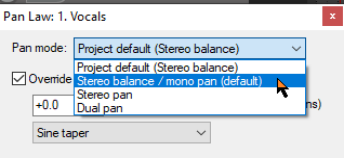
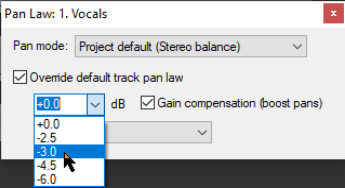
When two channels are mixed the result is louder if both are panned dead center than if they are each panned to the extreme left and right. Pan laws enable you to compensate for this. You can choose a default pan law for new tracks in your advanced project settings**.** Right-click on the pan control to choose a pan mode (see right). Pan modes are explained more fully in Chapter 11 when we look at stereo panning. In brief, however, you have a number of options – Stereo balance/mono pan is the default (see Project Settings). This is equivalent to the mode used in versions before REAPER 4. You can change the pan law for individual tracks. Right-clicking over a track’s pan fader opens a window with an option to Override default track pan law. Selecting from the list (in a range 0.0 dB to -6.0 dB) or type in your own value. A negative setting causes the signal at the center to be attenuated as panning increases. The Gain compensation (boost pans) option if enabled causes the signal's audio strength to be boosted as it is panned further away from the center. The -3 dB and -6 dB settings correspond exactly to equal power and equal gain respectively. The pan law dropdown options are sine taper, linear taper and hybrid taper. The default is hybrid taper. With linear taper the overall sound increases as you pan towards the center. Non-linear tapers seek to compensate for this. There is morel information about pan laws here: https://samplecraze.com/tutorials/the-pan-law/