12.7 The Track Manager
The Track Manager (View, Track Manager) gives you control of your tracks.
Kind: concept (user-guide-section) Chapter: 12 Managing The Overall Project Source: REAPER User Guide v7.70
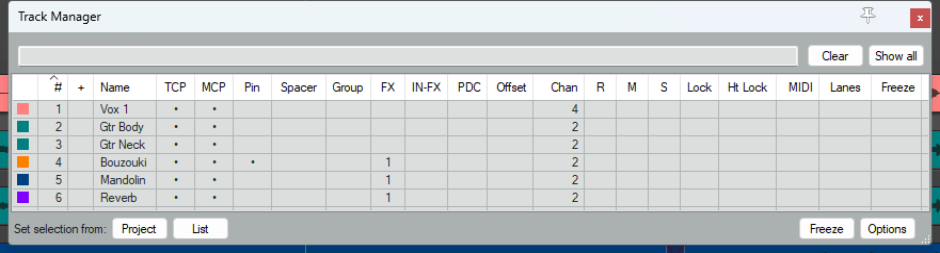
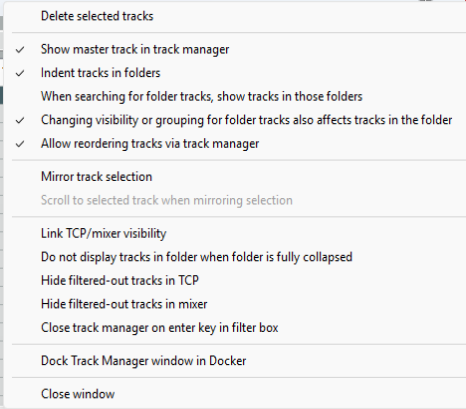
The Track Manager (View, Track Manager) gives you control of your tracks. It shows a grid similar to a table. The Show All button will display all tracks. The Options menu includes Mirror track selection. (i.e. a track selection made in either the Track Manager or the TCP is also applied in the other) and, optionally, to Scroll to selected track in TCP and mixer. There is an option Changing visibility or grouping
for folder tracks also affects tracks in those
folders. Folder/child tracks hierarchies are retained within the track manager. The option to Indent tracks in folders can be disabled from the Options menu. Other Options button menu items are explained in the table below, which also summarises the options within the track manager window.
To do this … … you do this
Change column order
Click and drag column header left or right.
Hide/Show columns
Right click on any header, deselect/select from list.
Expand/collapse folders
Click on the +/- symbol in the column headed +.
Adjust column width
Click and drag left or right on boundaries between column headers,
Type text in filter box: e.g.” co” to list only those tracks whose name includes co. Supports use of NOT and OR filters: e.g. “bass OR guit” will find all tracks with either bass or guit as part of their track name. Options menu commands include Hide filtered-out tracks in TCP and/or Hide filtered-out tracks in mixer. The Clear button removes the filter. There are options in this menu When searching for folder tracks make sure child tracks in those folders are shown and to Close track manager on enter key in filter box from the Options menu.
Filter the track list by name
See also the section Using Search Filters for advanced options.
Change TCP track order in track manager
Drag and drop tracks up or down. This can be disabled by disabling Allow reordering tracks via track manager from the context menu.
Delete track
Select track row and press Delete. You will be prompted to confirm this.
Show/hide Master
Toggle Show master track in track manager in Options button menu.
Show/hide tracks in TCP/MCP
Click in track row in TCP/MCP columns. You can use the toggle option (on the Options button) to Link TCP/Mixer visibility to synchronize track display. Supports “Swipe” (see last row of table).
To do this … … you do this
Set/change track color
Click on square in the first column, then Set color or Set to random color.
Pim/unpin track to top
Click in the track’s cell in the Pin column.
Double-click that track’s cell in the Group column.
Open track grouping dialog for any track
Scroll track into view
Double-click on track number in # column.
Open/show track FX chain
The FX column shows the number of FX in each track's FX chain. Double-click on that cell to open the FX chain for that track.
Add FX to track or open an FX window
Right click over the track's FX cell and use context menu, or Drag and drop from the Add FX window to the track in the track manager.
Open/show track Input FX chain
The IN-F column shows the number of FX in each track's Input FX chain. Double-click on that cell to open the input FX chain for that track.
Monitor plug-in delay compensation
Any plug-in delay compensation used by a track's FX will be indicated (in ms) in the track's PDC cell. Clicking on this cell toggles track FX bypass.
Open a track’s routing window
Double-click in the Chan (channels) column for that track.
Arm/unarm tracks for recording
Click in the R column for any track(s) to arm for recording. The letter R will be shown for armed tracks. Click again to unarm. Supports “Swipe” (below). Right click on any cell in this column to display record menu for that track.
Mute/unmute tracks
Click in the M column to toggle mute status. All the modifier keys used in the TCP can be used here – e.g. Ctrl Mute to unmute all. Right-click for TCP mute context menu – see Chapter 5. Also supports “Swipe” (see below).
Solo/unsolo tracks
Click in the S column to toggle solo status. All the modifier keys used in the TCP can be used here – e.g. Ctrl Alt Solo to solo exclusive. Right-click for TCP solo context menu – see Chapter 5. Also supports “Swipe” (see below).
Lock/unlock track controls
Click in the Lock column to toggle lock status. Locked tracks display a + sign. Supports “Swipe” (see last row of table).
Lock track height
Click in Ht Lock column to toggle.
Manage MIDI items
Double-click a track's MIDI cell to open track MIDI items in new MIDI Editor. If item is already open, double-click to close. Right-click in cell for menu of options: Open in new MIDI editor, Open in
existing MIDI editor, Open in existing MIDI editor (clear editor first)
or Remove from MIDI editor. The third of these options removes from the MIDI editor any tracks/items already open before opening this one.
Free Item Positioning on/off toggle
Click in the Lanes column to toggle on/off Free Item Positioning. FIPM on shows a + sign. Supports “Swipe” (see last row of table).
Insert/remove virtual spacer above track
Click in the Spacer column for that track.
Freeze/unfreeze tracks
Select track(s) in Track Manager window, then choose whichever action you wish from the Freeze button menu. See also Chapter 6.
Sort Track Manager list
Click on any column header. Click again to reverse sort order.
Manage track groups
The track manager will respect grouped track parameters (Chapter 5). As with the track grouping matrix, you can use Shift to temporarily over-ride these.
Swipe to toggle several adjacent tracks
For example, to mute or solo or lock several adjacent tracks, click and drag/sweep down the track list in the appropriate column.
In the example shown above this table, the Guitars folder is collapsed so that its child tracks (tracks 6 and 7) are not displayed. It has two FX and four channels. The Bass track is locked. All tracks are accessible in the TCP and MCP (although to view tracks 6 and 7 you would need to expand the folder). Both the Vox Ben and Vox Amy tracks are soloed. They are also FIPM enabled and are grouped as group 1. The Reverb track has one FX.
Tip: You can use the Screensets window to save different sets of Track Manager settings as Track Views, any of which can be recalled in an instant. Screen sets are explained later in this chapter.