15.3 The Action List Editor Environment
You'll get more out of REAPER's Action List Editor (shown below) if before trying to use it you take a little time getting to know its interface, its structure and how you can navigate it.
Kind: concept (user-guide-section) Chapter: 15 Customization: Actions, Mouse Modifiers, Menus and More Source: REAPER User Guide v7.70
You'll get more out of REAPER's Action List Editor (shown below) if before trying to use it you take a little time getting to know its interface, its structure and how you can navigate it.
Item Comments
Filter
See also section Using Search Filters for more advanced options.
You can filter the list of displayed actions using any text string or strings that you like. For example, in this screen shot the list has been filtered to show only those actions that relate to new tracks:
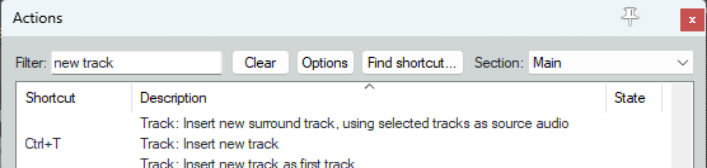
Notice that one of these actions – Track: Insert new track – already has a shortcut (Ctrl T) assigned to it. Boolean search terms are supported. For example, you could search for any of these:
delete OR remove OR clear
insert ( item OR media ) (spaces before and after parentheses) properties ( take NOT channel ) (spaces before and after parentheses) Notice that where an existing keyboard shortcut exists it is shown to the left of the action. For example, the ! Key is used to toggle the action View: Expand selected track height, minimize others. Similarly, you can see that Ctrl Shift Mousewheel can be used to adjust the height of any track selection. Note: In the actions list, the terms “Ruler” and “Timeline” are synonymous. For more examples of how to use Boolean search operators, see Chapter 6.More advanced options are explored at https://www.ciap.health.nsw.gov.au/training/ebplearning-modules/module2/section-2-building-a-search-strategy.html
Clear
The Clear button clears any current filter and restores all actions to the list.
Finding assigned shortcuts
The Find shortcut... button is used to see if a particular keyboard shortcut has already been assigned to any action. Click on this button and you are prompted to type a key or move a MIDI controller. We'll come to MIDI controllers later in this chapter. If the key is already in use, its assignment will be displayed (see below).
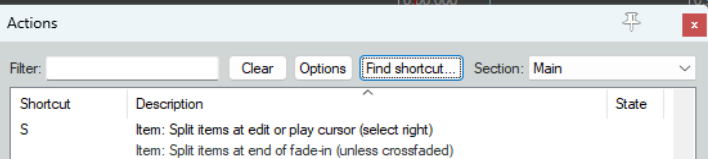
In the example above, we search to see if an assignment exists for the letter s. For this kind of search, you should only type in upper case if you really are searching for the combination of Shift with the letter. You can use the filter to search more generally for existing shortcut assignments. For example, typing alt+shift in the filter box would list all shortcuts which include both the alt key and the shift key. This can be handy to help you establish (by elimination) which keyboard combinations are and are not currently in use.
Item Comments
Column headers/ Sort keys
The State column indicates for toggle actions whether their status is on or off. By default, actions are listed in alphabetical order of their description. You can click on the Shortcut column header to sort instead on current keyboard assignments with special characters and numbers at the top of the list (see below).
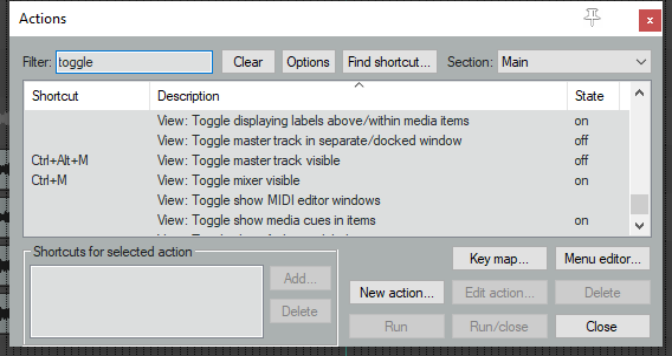
Click on the column header again to reverse the sort order. Click on Description to sort them back into alphabetical order.
Sections
The Action List is divided into a number of sections (or contexts). You can assign the same keys to different actions in different contexts – e, g,, in the Main section S iwill split an item. It can be assigned differently in, for example, the MIDI Editor.
Run
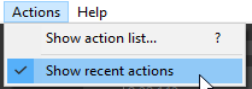
An action can be executed within the action list regardless of whether it has shortcut keys. Select the action, then click the Run button. If the toggle Show recent actions is enabled on REAPER's main Actions menu (right) then any actions executed during your current session will be added to REAPER's Action menu. Closing REAPER, clears these actions from the menu.
Run/Close
This button is similar to the Run button, the main difference being that after running the selected action it closes the Actions window.
Close
This closes the Actions window.
When enabled (from the Action window rightclick context menu) REAPER will apply your most recent filter next time the Actions window is opened, even in a future work session.
Remember last action filter

When enabled (from the Action window right-click context menu) REAPER will include common synonyms with your search filter. For example, a search for “display” would also find actions that include “show”. If you wish to define your own synonyms you will need to customize a language pack with a section “actionlist_synonyms.”
Search for synonyms of common words
From the right-click context menu, or Options button menu: shows/hides a column displaying REAPER's action command IDs.
Show command IDs
Open menu editor
Click this button to open the menu editor.
General
The Action window exhibits the basic characteristics of other REAPER windows. For example, you can use the pin symbol (top right) to keep it on top, or you can dock it in the docker (from the right-click context menu).