13.35 Copying MIDI Items in Arrange View
When you make a copy of a MIDI item in arrange view, then depending on your preferences and on how you make the copy one of two outcomes will occur: The first of these the new MIDI item becomes a….
Kind: concept (user-guide-section) Chapter: 13 Working with MIDI Items Source: REAPER User Guide v7.70
When you make a copy of a MIDI item in arrange view, then depending on your preferences and on how you make the copy one of two outcomes will occur: The first of these the new MIDI item becomes a discrete item in its own right, so that you can independently edit either item without affecting the other. The alternative is that the new item will be created as a new instance of the original item, and will use the same source data as the original. This is known as pooled MIDI, In this case, any changes made to either item will be applied to the source data, and therefore also to the other item – indeed, to as many items as have been copied. This might be what you want, for example, if you have a melody, a bass line, or a drum pattern that you wish to repeat throughout a project. You’re still working on the line, and you may need at some future time to make changes to these items, and you wish to do this in such a way that when you make these changes to any one item they will automatically be applied to all of the others. The items are added to the Project Media Bay (see Chapter 12) where they are listed as MIDI pool items. By default, when you copy and paste items using the menus or keyboard shortcuts (such as Ctrl Shift C and Ctrl V), the former method (creating a new stand-alone item) is applied. The items are added to the Project Media Bay and are listed as individual MIDI items.
To change this default behavior, disable the preference (under Options, Preferences, Media, MIDI) to Pool MIDI source data when pasting or duplicating media items (see also Chapter 22). Items will then by default be copied as discrete items. A new MIDI pool item is never created when an existing MIDI item is split. By default MIDI items added to a project from the Project Media Bay are not pooled.
Default behavior when you copy an item by dragging with the mouse can also be modified according to your mouse modifier settings Using Media item left drag. Shift Ctrl Alt drag will by default cause the copied item to be pooled.
Other useful options include:
No modifier Move item
Ctrl
Copy to new discrete item
Shift Ctrl
Copy to new discreet item ignoring snap
Ctrl Alt
Render item to new file You can change any assignments if you wish. The method is explained in Chapter 15.
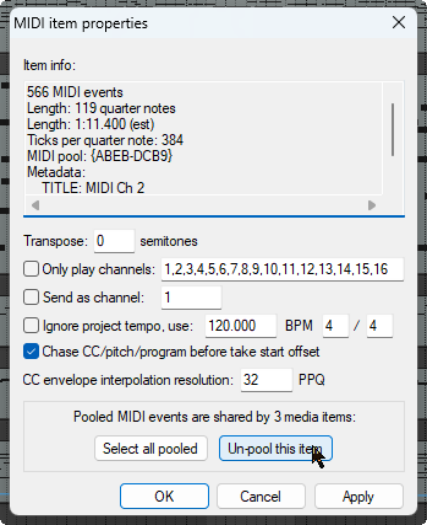
You can remove a MIDI item's pooled status and convert it into a discrete item. Display its source properties window (Ctrl F2) and click on Un-pool this item then on Apply.