7.41 Pencil Editing
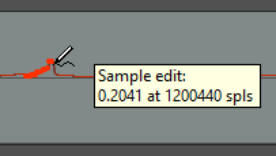
With direct sample editing enabled you are able to use your mouse as a pencil to physically and manually edit your audio items, as shown here (right).
Kind: concept (user-guide-section) Chapter: 7 Managing and Editing Media Items Source: REAPER User Guide v7.70
With direct sample editing enabled you are able to use your mouse as a pencil to physically and manually edit your audio items, as shown here (right). To access sample editing you must select the item and zoom right in to sample level. The feature is then enabled by selecting the toggle command Take, Take sample edits from the context menu. Your mouse then becomes a pencil. With sample editing enabled, you can draw your edits with the pencil mouse. Right click for a context menu which includes:
Delete sample edit (or use Alt left drag) Set sample value to zero (or use Shift Alt left drag)
Delete sample edits in time selection Set sample values to zero in time selection Set sample values to a straight line in time selection
Scale sample values in time selection (to any value between 0% and 200%)
Hide sample edits
Clear sample edits for this channel or all channels. Zooming out again will automatically disable sample editing.