15.31 Controlling REAPER with a Web Browser Interface
You can use your mobile phone or tablet as a control surface for REAPER, for example to record tracks, play them back, solo or mute tracks, and so on, using REAPER's web browser interface!
Kind: concept (user-guide-section) Chapter: 15 Customization: Actions, Mouse Modifiers, Menus and More Source: REAPER User Guide v7.70
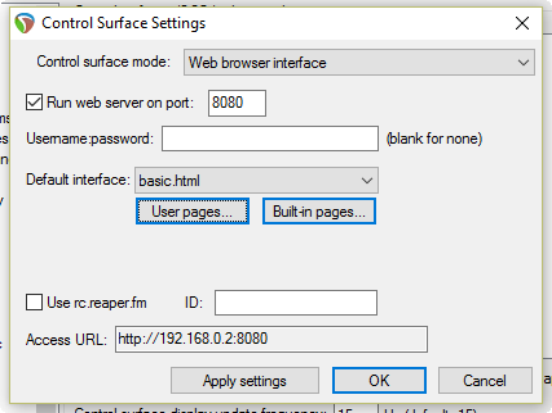
You can use your mobile phone or tablet as a control surface for REAPER, for example to record tracks, play them back, solo or mute tracks, and so on, using REAPER's web browser interface! Make sure that your REAPER computer is on-line. Open any project, or start a new one. Open the Control/OSC/web page of your Preferences. Click on Add and from the Control surface mode dropdown select Web browser interface, to open the dialog shown here. This example shows basic.html selected from the Default interface dropdown: this is a simple interface provided with REAPER. If you prefer a graphical interface, try index.html. Other options might be available on the drop-down, or in Built-in pages. The interface that you select will determine, amongst other things, the look and layout of the interface and exactly which REAPER tasks you will (and will not) be able to perform in your web browser. You can store any interfaces that you create or download yourself in the User pages folder. Click on Apply Settings. Make a note of the exact Access URL shown on your screen. Open any browser (e.g. Chrome or Safari) on your phone or tablet and enter the exact access URL code in its search bar. You will be taken to a screen similar to that shown below (but see footnote below).
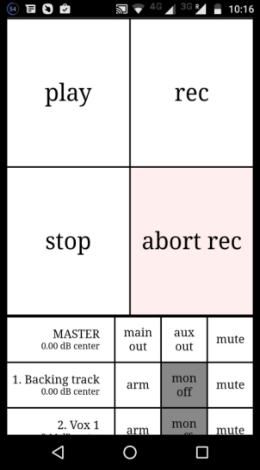
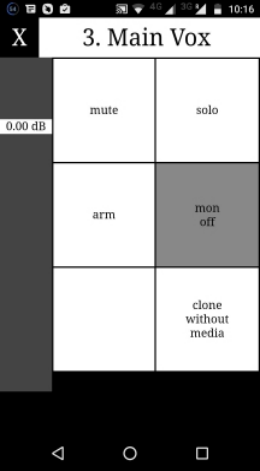
The four main buttons are play, stop, record and abort record. Below these, your tracks are listed, starting with the master track. Individual tracks can be armed, monitored or muted. Touch any track to see it displayed as shown here on the right. There is a vertical volume fader on the left and various other track controls as shown (mute, solo, etc.) Click on the X to return to the main view. The HTML interface file includes HTML, CCS and Javascript. It defines what you see on your phone and how it behaves. In the finest REAPER tradition, users can develop their own scripts for a customised web mobile interface, or to make one available to other users. Check out on the REAPER Stash from time to time! You never know what you might find there!
Footnotes: With some Windows installations, in order to get this to work you might need to manually adjust some settings. In this example, 8080 is the port number. On most Windows systems, this is pre-defined as open, but you might wish to use a higher number, e.g. over 9000. If so, you will need access your Windows Firewall settings to open the port that is being used, and to give REAPER inbound and outbound access. If you prefer, you can tick the Use rc.reaper.fm box. This will record your local IP and create a permanent URL link which will always redirect to your local IP even if the local IP changes. Just follow the on-screen instructions.