22.10 Plug-ins Preferences
Your two Automatically resize FX windows options, if enabled, will ensure as you browse thru a track's FX chain that the FX window is automatically resized to suit the currently selected FX.
Kind: concept (user-guide-section) Chapter: 22 REAPER's Preferences and Other Settings Source: REAPER User Guide v7.70
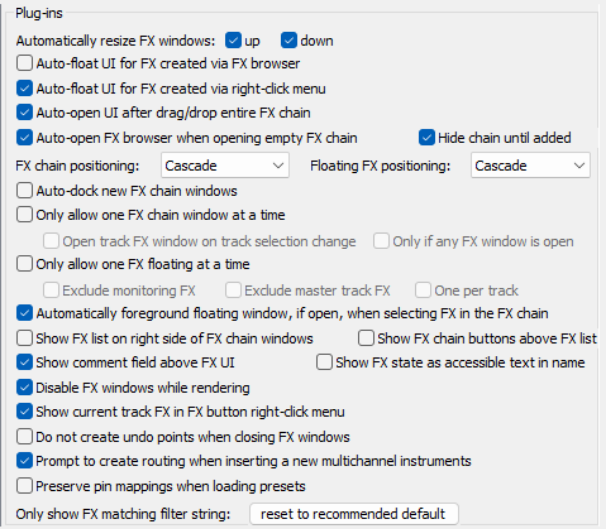
Your two Automatically resize FX windows options, if enabled, will ensure as you browse thru a track's FX chain that the FX window is automatically resized to suit the currently selected FX. You can specify whether FX created
by browser or right click menu
should be auto-floated, if floated FX windows should automatically be placed on top, if newly created FX windows should be floated, and if windows should be automatically opened for FX added from the TCP and MCP menus. You can specify whether or not to
auto-dock newly created FX
windows and whether you want the Add FX window opened automatically when you open an empty FX chain for a track or media item. There are options for only one FX chain at a time to be visible and to only allow one FX at a time to be floated.. The two Positioning drop downs (FX chain positioning and Floating FX positioning) allow you to choose Cascade, Automatic or Modal Default (set in Preferences, General, Advanced**)**. These can ensure that floated FX and/or FX chain windows will, where possible, be positioned other than cascaded on top of each other. There are options to Not create undo points when closing FX windows, to Prompt to create routing when inserting a multichannel instrument and to Disable FX windows when rendering. Option to Preserve pin mappings when loading presets. If you enable the option to Only allow one FX chain window open at a time you may also specify whether you want the open window shown to change when you change track selection (Open FX window on track selection change) and whether this is to happen only if an FX window is open. Display preferences include whether by default to Show FX list on right side of FX chain window and/or Show FX chain buttons above FX list and/or Show comment field above the FX UI and/or Option to Use long names prefix for parallel FX. You can also opt to have track FX added to the item FX button right click menu. This enables you to open these FX directly from this button. You can also Disable Undo points when closing FX windows. You can specify how many FX to show on the context menu Recently added list and whether current track FX should be shown on the FX button context menu. You can specify an FX filter string to be applied to all views in the FX browser (e.g. NOT sony if you do not want these plug-ins to be shown). This is as well as to any filter you apply in the FX browser itself.