9.4 Snapping to Markers
You might wish to ensure that when you are making a time selection, the boundaries of the selection will automatically snap to nearby markers at the start and/or end of the time selection (if any such markers are present).
Kind: concept (user-guide-section) Chapter: 9 Tempo Based Production, Loops, Markers and Regions Source: REAPER User Guide v7.70
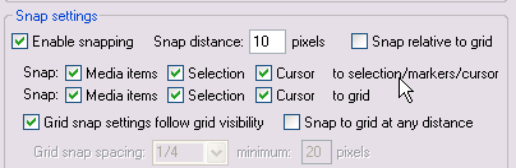
You might wish to ensure that when you are making a time selection, the boundaries of the selection will automatically snap to nearby markers at the start and/or end of the time selection (if any such markers are present). Consider the portion of the Snap/Grid Settings shown on the right. Notice that snapping has been enabled, with a snap distance of 10 pixels defined.
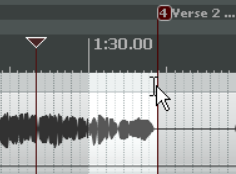
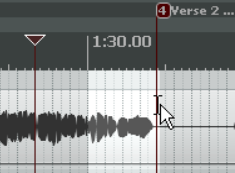
With snapping disabled, it can be quite difficult to make a selection which starts or ends exactly at a marker. When you attempt to make such a selection, you might end up with the selection shown in the first of the screen shots below. Notice that the end of the selection doesn't quite match the marker. However, in the second example shown, with snapping enabled and the settings shown above, if you drag the selection to within 10 pixels of the marker position, the selection will automatically snap to the marker when you release the mouse. Notice the effect of making exactly the same selection with the above snap settings disabled (left) and enabled (right).
Example
In the first screen shot (below), a project contains two markers, at the start and at the end of the project.

Suppose that you wish to reposition Marker 2. Simply position the edit cursor there and then press Ctrl 2.

Now let us suppose that you want to create Marker 4 at the end of the song, reserving Marker 3 for a position as yet unspecified. You can position the edit cursor at the end of the song and press Ctrl 4.
