15.22 MIDI Editor Mouse Modifiers
Using mouse modifiers in the MIDI Editor is a topic that merits a section of its own.
Kind: concept (user-guide-section) Chapter: 15 Customization: Actions, Mouse Modifiers, Menus and More Source: REAPER User Guide v7.70
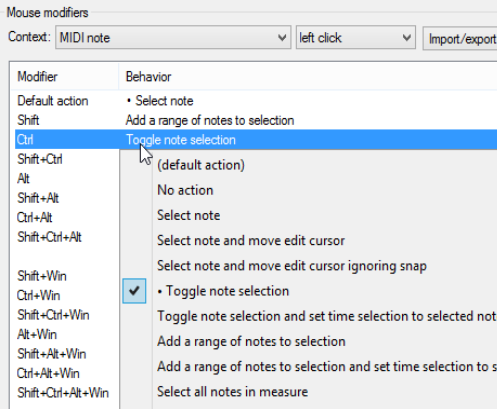
Using mouse modifiers in the MIDI Editor is a topic that merits a section of its own. Nowhere is this more true than when you are editing MIDI notes and CC events. A large number of actions are available for use in the MIDI editor. One example is the MIDI note left click context (below). If you use the MIDI Editor a lot then you should definitely take some time to investigate and to identify which of these actions are most useful
to you. For example, you could reassign Alt to be used when clicking on any note to erase it. Notice that in addition to the other shown on the menus, you can choose to open the Action list and select an action there. All actions in REAPER's Action List MIDI Editor and MIDI Event List Editor categories (including any custom actions of your own) are available to be assigned as a mouse modifier in most contexts within the MIDI Editor. MIDI Editor mouse modifier contexts include:
MIDI note left click, MIDI note left drag MIDI note double click MIDI note edge left drag MIDI CC event left drag MIDI CC lane left click/drag MIDI CC event double-click MIDI CC lane left drag MIDI CC lane double-click MIDI source loop end marker left drag MIDI ruler left click, MIDI ruler left drag MIDI ruler double-click MIDI marker/region lanes left drag MIDI piano roll left click MIDI piano roll left drag
MIDI piano roll double-click, and MIDI editor right drag.
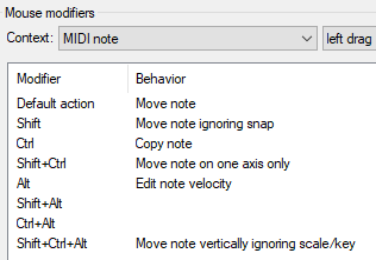
Let's take a brief look at some of these areas in which you can modify mouse behavior within the MIDI Editor. Shown here are the defaults for MIDI note left drag, MIDI piano roll left drag and MIDI ruler left drag. In many cases separate contexts are available for left click, left drag and double-click behavior. You can define how your mouse behaves when it is being used in any of these contexts. Within most contexts you will find several different types of mouse action. For example, when working with MIDI notes, a different action will be required when (say) dragging a note from when double-clicking on it. Thus, within the Mouse Modifier page of your preferences, you can select not only a context but also a type of mouse action.
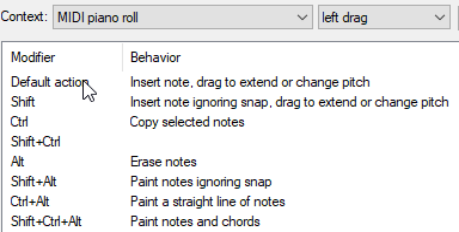
Here are two examples: the default actions for the contexts MIDI note left drag (above right) and MIDI piano roll left drag (right). By default many actions are already defined. For example, simply dragging a MIDI note (or selection of notes) will by default move the note(s), whereas holding Ctrl while you do this will copy them. For example, holding Shift and Alt while dragging a marqueed selection of notes will stretch the selection out horizontally so as to arpeggiate the notes.
Simple click and drag in the empty MIDI piano roll area will first draw a note, then extend it as the mouse is dragged. Various keys can be used with this for other actions. For example, holding Ctrl and Alt while dragging will paint a straight line of notes between mouse up and mouse down.
Many key combinations are not assigned. Click on any of these for a list of actions that you can
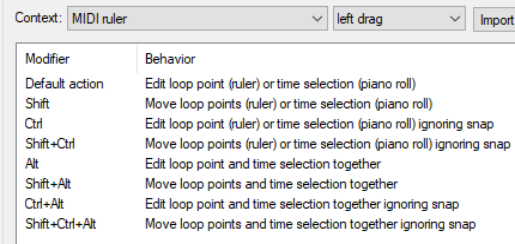
use. You can also use this method to change any existing assignments. Shown right are the default actions which are assigned to the MIDI ruler left drag context.
If you use the MIDI Editor a lot, you should take the time to explore just what is available for the different contexts.
Take the time also to look at the MIDI editor right drag assignments. As well as several variations to set marquee behavior (select notes, add notes, toggle selection, etc.) there is also an action using Ctrl Alt to select all notes touched while freehand dragging.
Note:
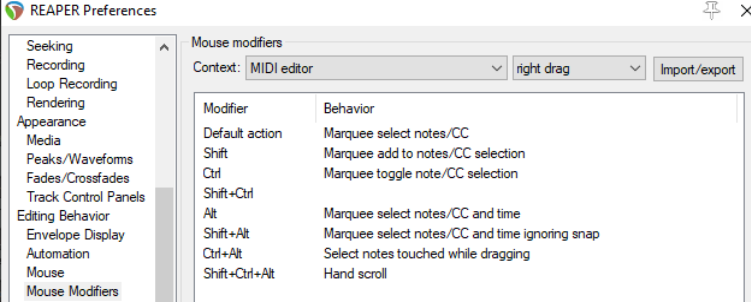
The Import/Export button can be used to export current settings for any context or all contexts to a ReaperMouseMap file, to import a previously saved mouse map file, or to reset all modifiers to factory settings.