12.9 Windows Screensets
At different stages of your project you are likely to need to use different combinations of views.
Kind: concept (user-guide-section) Chapter: 12 Managing The Overall Project Source: REAPER User Guide v7.70
At different stages of your project you are likely to need to use different combinations of views. For example,
you might not need to see the mixer when recording but you might need the media explorer. Later you may need the mixer and, perhaps, the track manager but not the media explorer. This is where Windows screen sets can useful.
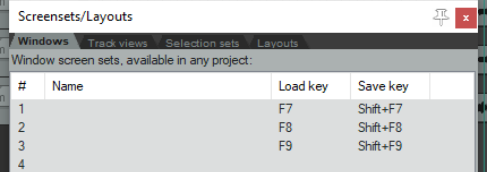
Unlike track view Screen Sets, Windows Screen Sets are not project specific, but can be applied to any project. They are stored in the Application Data folder in a file called screensets.ini. After opening the Screensets/Layouts view (Ctrl E), to create Windows screen sets you should do this:
- Decide which windows and views you want displayed, and arrange them on screen.
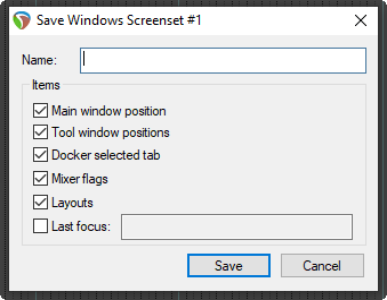
- In the Screen Sets window, select the Windows tab, select a number, then click on Save. Type a name,
then select your options as you require (see below). Click the Save button.
-
To recall and open any screen set, double-click on its name, or select it and click on the Load button.
-
To change a screen set, open it, make the changes, then save it.
-
To remove a screen set, select it and click on the Clear button.
-
To rename a screen set, select it, click Clear, then Save, type new name, click Save.
You can also use keyboard shortcuts with Windows screen sets. By default, Shift F7 to Shift F9 are assigned to saving Windows screen sets 1 to 3, and F7 to F9 to loading them. These assignments can be changed in the Actions List Editor (see Chapter 15), accessed directly from the Screensets window by clicking Edit shortcuts.
The options that you may choose to include in or exclude from any screen set are:
Main Window Position Mixer Flags Tool Window Positions Layouts Docker Selected Tab Last focus Some of these are self-explanatory. In addition, note that: The tool window position option will cause the position of those windows which are defined by Windows as tool items (such as VST FX and the MIDI Editor) to be saved and recalled with the screen set. For any particular project, however, this will only be applied if that particular window exists in that project. This option is useful, for example, if you use a set of standard plug-ins in the Master and you want to easily be able to open and close all these FX windows when working with any project. Enabling docker selected tab will ensure that whichever window in the docker is visible when the screen shot is saved will be visible when it is recalled. The mixer flags option, if enabled, will save your various Mixer menu options (FX inserts, sends, folders, top level tracks, position of master, etc.) with the screen set. These options are discussed in detail in Chapter 11. We encountered layouts in Chapter 11, in the context of the Mixer. You'll find more information about Layouts later in this chapter. Enabling this option will ensure that your layouts are saved with the screen set. The last focus option can be selected to ensure that a particular view automatically is given focus whenever the Screen Set is loaded.