7.27 Separate Snap and Grid Settings
The above examples use the same set of snap parameters for grid display as is used for snapping.
Kind: concept (user-guide-section) Chapter: 7 Managing and Editing Media Items Source: REAPER User Guide v7.70
The above examples use the same set of snap parameters for grid display as is used for snapping. In other words, the snapping would take place to the nearest grid position. Let's now see what we can do if we disable the option Grid snap settings follow grid visibility. We have also changed the minimum pixels setting for grid line spacing, in this case to 20 pixels, whilst still specifying (at the point where the cursor is shown on the screen shot) a grid snap spacing of one sixteenth beats.
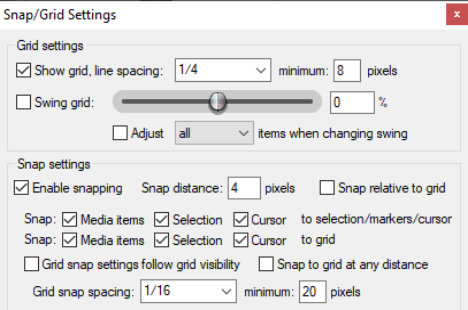
This produces a less cluttered display on the screen. Provided you have zoomed into your project sufficiently, gridlines will be shown for every quarter beat but snapping will take place between as well as on the gridlines, at every sixteenth beat.
The Media items snap to option can be set to Snap both start/end, Only snap at start/snap offset or Mouse position dependent (i.e. at the mouse position nearer at the time, the start or the end).
Tip: When snapping is enabled, this can be over ridden when selecting a loop along the timeline by holding down the Ctrl key while you make the selection.
Note: The action list includes an action Item: Set snap offset for item under mouse to mouse position.