16.8 Using FX Presets
When you are satisfied with your settings for any plug-in, you might wish to save them as a preset, so that you can apply them next time you want to use it on another track.
Kind: concept (user-guide-section) Chapter: 16 REAPER Plug-ins in Action Source: REAPER User Guide v7.70
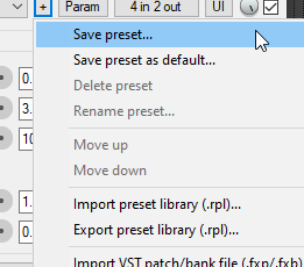
When you are satisfied with your settings for any plug-in, you might wish to save them as a preset, so that you can apply them next time you want to use it on another track:
- Click on the + button just above the JS Delay plug-in when this plug-in is selected. 2. Choose Save preset from the menu. 3. Type a name and click on OK. To save these as default parameter settings for the plug-in when it is used in the future, use the Save preset as default... command from the same menu.
To import an existing preset library (such as you might be able to download from the REAPER web site) you would choose Import preset library. To export your presets to a file (for backup purposes, or to use on another computer) you would choose Export preset library.
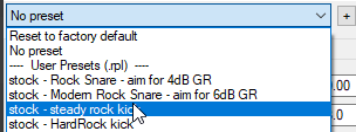
To choose an existing preset (previously saved or imported, or which were supplied with the plug-in), insert the plug-in into that track’s FX window, display the drop down list of presets (see above), then select the one that you want.
Within the FX Browser, you can select a preset when adding an FX to the FX chain. Right-click over the plug-in name then from the contextsensitive menu choose Presets, then select the required preset from the displayed list.
