12.5 The Theme Development Tweaker
Chapter 15 covers REAPER's action list editor in detail.
Kind: concept (user-guide-section) Chapter: 12 Managing The Overall Project Source: REAPER User Guide v7.70
Chapter 15 covers REAPER's action list editor in detail. One action that you might find useful is the action Theme development: Show theme tweak/configuration window. Choose the main menu Actions, Show action list... command. Type tweak in the filter window then select and Run the action
Theme development: Show theme tweak/configuration window.
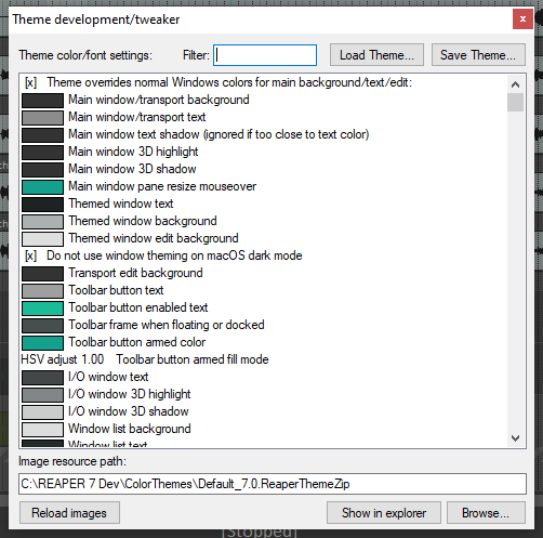
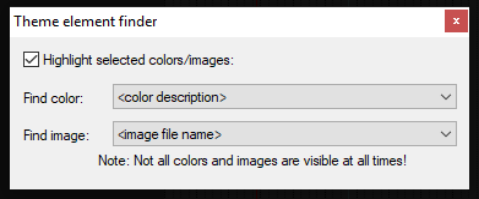
Here you can change the colors assigned to various elements. Themes consist primarily of three elements: image files, color/font definitions and Windows settings. Image files provide, for example, track control items (e.g. pan and volume faders). Definitions apply to items such as the fonts and colors used for media items, track/mixer panels, edit and play cursors, markers, VU meters, envelopes, etc. Use the filter box at the top to help find those items that you wish to change. For example, typing item will find all elements relating to items. This find feature also supports advanced command syntax using operators such as AND, OR and NOT. For details of these and how to use them, see the section Using Search Filters. Selecting an item will display the color picker where you can select a color of your choice. (Note that the terms ruler and timeline are synonymous: you can search for ruler OR timeline). If you are not sure what any of the listed items are, you can use the Theme element finder to identify them (see below). To display this, enter theme in the action list filter window then select and Run the action Theme development: Show theme element finder. In addition to those installed with REAPER, many themes are available for download from stash.reaper.fm. To install a downloaded .ReaThemeZip file, drag and drop it from Windows Explorer into REAPER's Arrange View (main view). The Load Theme … button (in the theme development/tweaker dialog) can be used to select any available theme. Scroll thru the Theme color/font settings list to see all of the items which you can change. Click on any item to open (as appropriate) the color picker or font dialog box, where you can change its definition. Finally, having chosen your fonts and colors, you can save them all together into a new theme by clicking the Save theme... button and giving the modified theme a name.