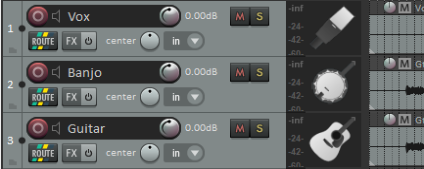
5.7 Track Icons
To add icons to tracks you can drag your own .PNG or .JPG files from Windows Explorer and drop them on to any track control panel, or right click over the track number and choose Track Icon then **Set track….
Kind: concept (user-guide-section) Chapter: 5 Project Arrangement Basics Source: REAPER User Guide v7.70
To add icons to tracks you can drag your own .PNG or .JPG files from Windows Explorer and drop them on to any track control panel, or right click over the track number and choose Track Icon then Set track icon... from the track menu to use any of those supplied with REAPER. This opens the Load Image Resource dialog box. You can view the icons as thumbnails, tiles, or a list. Make your selection and click on Open.
Shown left is a project with track icons. Icons are saved with track templates. To display icons in the Mixer, choose Show Track Icons in Mixer from its context menu. To remove icons from any track or selection of tracks, first select the tracks (in either the TCP or MCP) then right-click over any track icon and choose Remove Track Icon from the menu. Additional track icon sets can be downloaded from the REAPER stash, at stash.reaper.fm