5.14 Track and Track Parameter Grouping
Note: As well as conventional grouping, REAPER supports VCA (Voltage Controlled Amplifier) grouping.
Kind: concept (user-guide-section) Chapter: 5 Project Arrangement Basics Source: REAPER User Guide v7.70
Note: As well as conventional grouping, REAPER supports VCA (Voltage Controlled Amplifier) grouping. To help avoid confusion, VCA grouping will be considered as a separate topic later in this chapter. By using track and parameter grouping you are able to define relationships between different tracks and their controls so that when you make a change to one control in the group, changes are also made to other tracks. The nature of these relationships can vary from being quite simple to rather complex. Here are some examples.
- You might have two tracks that you wish to keep at a constant volume relative to each other. In this case, you could ensure that whenever one is faded up or down then so is the other.
- You might have two tracks that need to be panned opposite each other. In this case, you can ensure that when one is panned in one direction, the other is automatically panned in the other.
- You might have two or more tracks that you wish to be always soled or muted together.
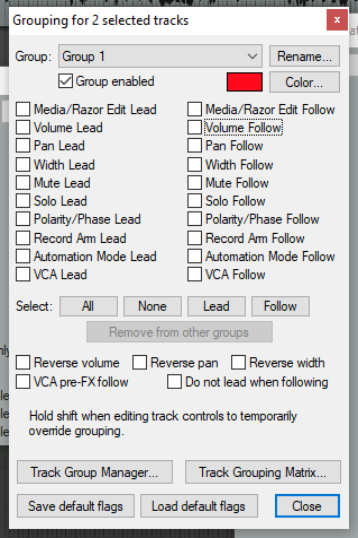
In a moment, we'll work thru some examples. There are two main ways to create and manage your groups. This can be done either using the Track Control Panel or the Track Grouping Matrix. Here is an overview of both methods. Method 1 uses the Grouping dialog box (shown right), which can be accessed from the Track Control Panel, the Mixer Control Panel:
- In the TCP or MCP, select the tracks whose parameters you
wish to group. Right-click over any track number in the group and choose Track grouping then Track grouping parameters from the menu (or press Shift G).
- When the Grouping window is displayed (see right) specify
those parameters that you want to group. Optionally, you can change the group name from its default, which will be Group 1, Group 2, etc. Click on Close when finished.
- Make sure that the option Track grouping enabled on the
TCP or MCP menu is selected (ticked). You can use this same method later to make changes to your grouped parameter definitions.
This interface might appear strange at first. For this reason, it may be easier, especially at first, to use the second method. Method 2 uses the Track Grouping Matrix. The track grouping matrix, which can be docked, can manage up to 128 groups. To display this, choose the View, Track Grouping Matrix command, or press Ctrl Alt G. We can create a special project file for our examples. You can then group
any selection of tracks that you like: in this example, we will be working with the two guitar tracks enclosed within the track folder. Note that you do not need to place tracks in a folder in order to be able to group them. First, you should note that track grouping globally is turned on and off using the Track, Track grouping enabled command. When this is ticked, grouping is enabled. This command can be used to temporarily disable track grouping without the need for you to redefine or modify your groups.