18.6 Envelope Points Options
The Options, Envelope points command helps determine envelope behavior.
Kind: concept (user-guide-section) Chapter: 18 Automation – Envelopes and More Source: REAPER User Guide v7.70
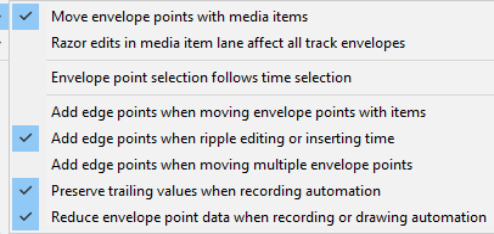
The Options, Envelope points command helps determine envelope behavior. These are also available by right clicking on the toolbar envelope tool. Move envelope points with media items should be enabled if you wish an envelope to follow its media item when that item is moved or copied.
Enabling Razor edits affect all track envelopes will link your envelopes with your media items when razor editing. They will be moved, copied or deleted with the media. With this disabled, you may still include envelope points/segments, etc. in your media item selections if you wish. There are some examples later in this chapter. Be careful with Envelope point selection follows time selection. This will move all points within a time selection when you click/drag on any one of them. If you don’t want this,, disable this option. Edge points can make it visually easier when moving a group of points. There are options to Add
edge points when moving envelope points
with items, when ripple editing or inserting time and when moving multiple envelope points. You can make a time selection, choose Select all points in time selection from the envelope context (right-click) menu, then click and drag (left or right) any point within the selection. There is also an option to Preserve trailing values when recording automation. Enable Reduce envelope point data when recording or drawing automation if more points are being made than you want when, for example, you write automation data.
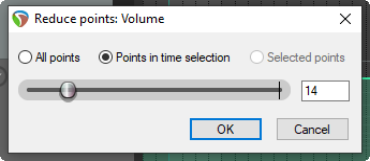
To reduce the number of points on an existing envelope that has already been recorded:
- Select (click on) the envelope. 2. Define the required time selection. 3. Right-click over the envelope. From the menu, choose Reduce Number of Points. 4. Select Points in time selection or (possibly) All Points. 5. Use the fader to set the number of points. Click on OK.