10.1 Changing the Project Play Rate
You can adjust the play rate for the whole project, using the Transport Bar.
Kind: concept (user-guide-section) Chapter: 10 Pitch and Time Manipulation Source: REAPER User Guide v7.70
You can adjust the play rate for the whole project, using the Transport Bar. The project’s default pitch shift mode will be applied. You can use any of these methods:
- Click in the Rate edit box and type a new value (e.g., to speed up by 10% type 1.1)
- Click the mouse in this edit box and scroll the mousewheel, up to increase or down to decrease play rate.
- Drag the horizontal fader adjacent to the play rate edit box. You can right click over this edit box and select one of the Playrate options from the menu. From this menu you can:
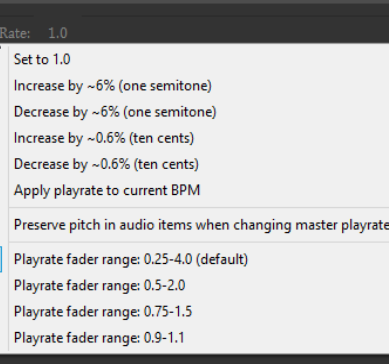
- Reset the playrate to 1.0.
- Increase or decrease the playback rate by any listed value.
- Enable or disable the option to Preserve pitch in audio items when changing master playrate.
- Apply play rate to the current BPM.
- Set playrate fader range according to any available option.
The Actions List includes actions for each of these options: these can be assigned to keyboard shortcuts if you wish.
Note: If the play rate fader is not visible in your transport bar, you can display it by right-clicking over any part of the Transport Bar background and selecting the option to Show play rate control.