12.4 Project Lock Settings
The Locking feature of REAPER can be used to effectively freeze certain aspects of a project file to prevent something accidentally being changed or deleted.
Kind: concept (user-guide-section) Chapter: 12 Managing The Overall Project Source: REAPER User Guide v7.70
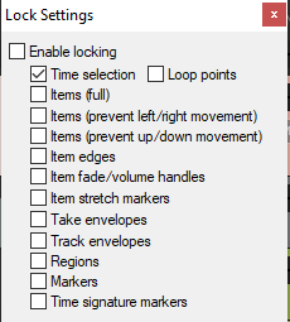
The Locking feature of REAPER can be used to effectively freeze certain aspects of a project file to prevent something accidentally being changed or deleted. There are two aspects to locking:
-
Deciding which project elements you would like to be locked.
-
Enabling or disabling the locking feature. The keyboard shortcut L can be used to toggle this on and off.
To display the Lock Settings window (shown right), press Shift L or right click over the lock button (the last item) on the toolbar. The table below summarises some of the ways in which you are able to make use of this feature. Select which ones you wish to lock, then Enable locking to actually lock them.
Locking Option Comment
Time selection
This locks the current time selection so that, for example, if you accidentally click and drag at some other point along the timeline your time selection will remain unchanged. You can remove a locked time selection by pressing Esc then selecting OK when prompted.
Loop points
Locks currently selected loop points.
Items full
This option prevents you from making any changes at all to any of your existing media items. For example, you cannot mute them, add FX to them, delete them, move them, slip edit them, or even access the Item Properties window or right click menu for any of your items.
Items (prevent left/right movement)
This option allows you to make any other changes you like to your media items except move them left or right.
Items (prevent up/down movement)
This option allows you to make any other changes you like to your media items except move them up or down.
Item edges
This option disables actions such as slip editing.
Item fade/volume handles
This option can be used to prevent any adjustments being made to any item's volume handle or rotary fade controls.
Item stretch markers
This option can be used to prevent any changes or movement from occurring to any item's stretch markers.
Take envelopes Track envelopes
This option ensures that when locking is enabled you will not be able to make any changes to existing take and/or track envelopes. For example, you will not be able to move or add points, or change shapes. You will still be able to add new envelopes for faders and plug-in parameters, but you will not be able to edit these in any way. For more about envelopes see Chapter 18.
Regions
Locking regions prevents you from changing (for example by moving, deleting or renaming) existing regions. However, you will be able to create new regions with Lock Regions enabled.
Markers
Locking markers prevents you from changing (for example by moving, deleting or renaming) existing markers. However, you will be able to create new markers with Lock Markers enabled.
Time Signature Markers
Locks time signature markers and prevents them from being modified.