3.37 Preference Settings for Recording
The Recording page of Options, Preferences determines REAPER’s recording behavior, including.
Kind: concept (user-guide-section) Chapter: 3 Recording Audio and MIDI Source: REAPER User Guide v7.70
The Recording page of Options, Preferences determines REAPER’s recording behavior, including:
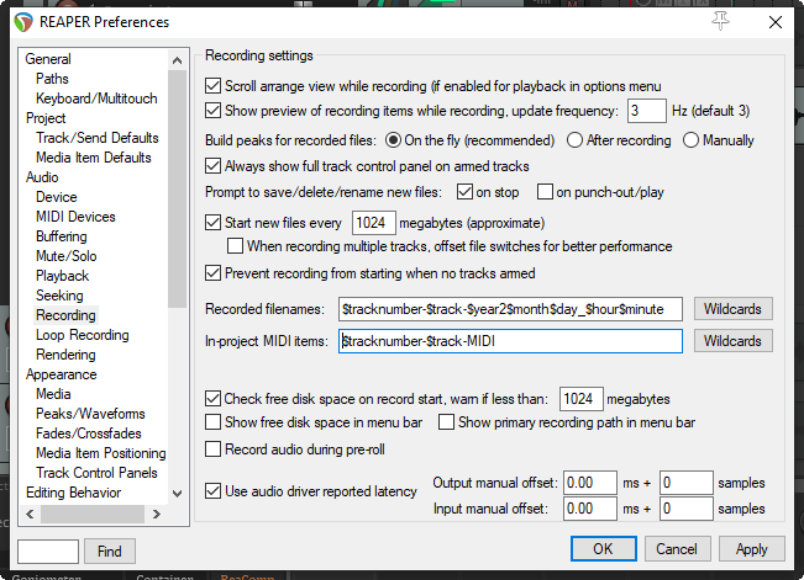
- To scroll track view while recording.
- To display a preview of media item peaks as they are being recorded. This confirms that you really are recording and haven’t forgotten to arm your tracks. You can also specify a screen update frequency.
- When to build the peaks for recorded media files.
- To automatically display the whole Track Control Panel (including VU meters) when a track is armed.
- Whether to prompt to save/delete/rename files when recording is stopped. If you disable this option, files are automatically saved.
- Whether to prompt to save/delete/rename files on punch out. If you disable this option, files recorded by this method are automatically saved.
- Whether to start recording to a new file after a specified number of megabytes. This can help to make data secure when recording a long live performance,.
- Prevent recording from starting if no track is armed. You may wish to turn this off if you are using layered recording for a track (or tracks) where recording is not required to start until some way into the song.
- Which items to automatically include in the file names for recorded media – by default these include the track number, year, month, day, hour and minute. Many other options (including project name and track name) are available by clicking on the Wildcards button.
- Which items to automatically include in names for MIDI items created within the project – by default these include the track number and track name. Many other options (including project name) are available by clicking on the Wildcards button.
- To check for free disk space before recording, and to display the amount of free disk space and/or recording path on the menu bar.
- Whether to record audio during pre-roll.
- Whether to use audio driver reported latency: this automatically adjusts media positioning to compensate for the audio driver's reported latency. There are also options for this to be manually adjusted. Beginners especially should leave these at their default settings.