10.11 Audio Jogging and Scrubbing
Jogging and scrubbing can help you to audition or locate a particular section within a project.
Kind: concept (user-guide-section) Chapter: 10 Pitch and Time Manipulation Source: REAPER User Guide v7.70
Jogging and scrubbing can help you to audition or locate a particular section within a project.
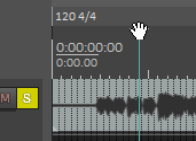
To jog a portion of a song, position your mouse over the triangle located on the top of the edit cursor, as shown on the right. The mouse cursor changes to a white hand. You can then click and drag in either direction. When jogging that you might want to zoom in quite closely on your project. By default, holding down the Ctrl key while jogging will enable Scrub mode. In this mode, playback will be much slower. This can help when looking for very short glitches.
You can set your jog/scrub preferences in the Audio, Scrub/Jog page of the Options, Preferences window, as shown below. Amongst other options you can:
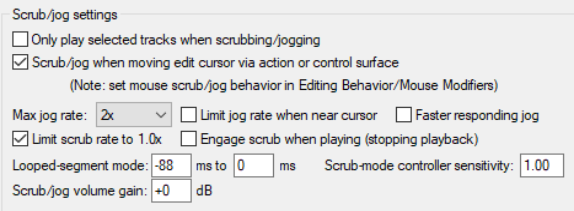
- Limit the maximum jog/scrub rates
(speed) to no more than normal playback speed.
- Choose to allow jog/scrub mode to over-ride normal playback.
- Enable the Only play selected tracks option, so that only those tracks currently selected will be heard during jogging or scrubbing.
Looped segment mode can be used to audition a section of your material as a loop. For example, if in Playback preferences (above right) you specify a range of -1000 ms to 1000 ms, then holding Alt while you click and drag the edit cursor handle briefly left or right will jog a two second portion of audio over and over for as long as you hold down the mouse button.
You can also assign modifiers for jogging and/or scrubbing to your Arrange View middle mouse button drag behavior. For more information about assigning mouse modifier preferences see
Chapter 15.