2.19 Navigating by Jumping
You can jump to any point on the timeline using the View, Go To, Jump To command or the keyboard shortcut Ctrl J.
Kind: concept (user-guide-section) Chapter: 2 REAPER Project Basics Source: REAPER User Guide v7.70
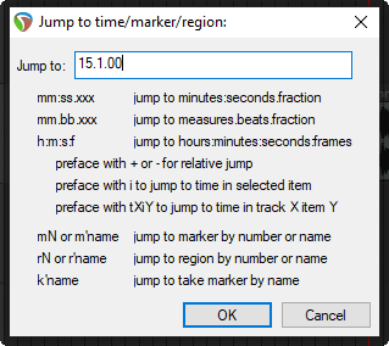
You can jump to any point on the timeline using the View, Go To, Jump To command or the keyboard shortcut Ctrl J. In typing the place to jump to you should use the same format as the timeline. In the example used here, the timeline displays Measures and below it Minutes and Seconds. You could therefore use either format, e.g. 33.1 or 1:04. To jump to an absolute position in a project, simply enter the required position as in the example shown. To jump forward or back relative to the current cursor position, enter a + or – followed by a value – e.g. -2.0 To jump to a specific time in an item, type I followed by the time, e.g. i0:30 If you are using markers and/or regions, you can jump to any maker or region – e.g., typing M1 will cause it to jump to marker 1, R2 to jump to the start of region 2, and so on. Markers and regions are explored in Chapter 9.
Tip: Another easy way to open the Jump to dialog box is to double-click on the time on the transport bar.