6.14 Optimizing FX Performance
Some plug-ins can be quite greedy in their use of CPU, especially delay based FX, such as delay, chorus, and especially reverb.
Kind: concept (user-guide-section) Chapter: 6 Managing Track and Item FX Source: REAPER User Guide v7.70
Some plug-ins can be quite greedy in their use of CPU, especially delay based FX, such as delay, chorus, and especially reverb. REAPER provides a number of options which you can use to minimize the drain placed on your computer resources by your plug-ins. These options can be found in the REAPER Preferences window (Ctrl P) under the heading Audio, Buffering. This window is shown and discussed further in Chapter 22. There is no “one size fits all” optimal group of settings. What is best for you depends on various factors, including which processor(s) you are using and which plug-ins. Note in particular the following:
- You can try using the default settings for Media Buffering at first. You can adjust them later if needs be.
- Allow live FX multiprocessing. Try turning this on if your PC has multiprocessors.
- Anticipative FX processing. This can reduce CPU usage, but too aggressive a setting can cause pops and
crackles on playback. If working with UAD-1, for best results, both Synchronous FX and UAD-1 Synchronous modes should be enabled. Anticipative FX should be disabled. UAD-2, however, is compatible with Anticipative FX mode and this is recommended for best low latency performance..
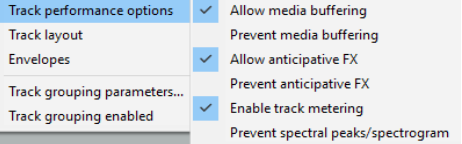
Optimize buffering for low latency hardware. If a plug-in has problems with media buffering or anticipative FX processing, you can disable either or both for individual tracks using the Track Performance Options on the TCP right-click menu. Options include enable/disable media buffering, anticipative FX, track metering, and/or display of spectral peaks.