3.24 Recording Multiple Additional Items
We have seen how to use REAPER to record multiple takes on the same tracks.
Kind: concept (user-guide-section) Chapter: 3 Recording Audio and MIDI Source: REAPER User Guide v7.70
We have seen how to use REAPER to record multiple takes on the same tracks. Later, Chapter 8 explains how to organise and edit these, taking the best parts from various takes and patching them together into a single take. Instead of using multiple takes, however, you may wish to record new items onto an existing track, perhaps overlapping. This is one case where free item positioning gives you greater flexibility. By default, free item positioning is disabled. To record extra items (rather than takes) on to an existing track, follow this sequence:
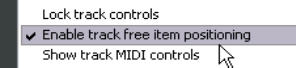
- Set record mode to normal (Options, Record Mode: Normal). 2. Turn on Free Item Positioning (FIPM) for the track being recorded. Right click on the track’s Track Control Panel and select Free item positioning if this is not already ticked. 3. Record your first item for the track.4. Position the cursor at the point where you wish to record the second item. Record this item. 5. Repeat step 4. as often as required.