12.13 Track, Mixer, Transport and Envelope Layouts
Layouts in general, and mixer layouts in particular, were discussed in Chapter 11.
Kind: concept (user-guide-section) Chapter: 12 Managing The Overall Project Source: REAPER User Guide v7.70
Layouts in general, and mixer layouts in particular, were discussed in Chapter 11. Layouts are created, stored and retrieved with individual themes. From the Layouts tab of the Screensets/Layouts window you can select any theme from the drop down theme list. Layouts are designed and created for use with individual themes. Therefore, the choice of layouts available to you will be largely dependant on which theme you are using. Themes can be downloaded from stash.reaper.fm. Layouts associated with your chosen theme will be available to you from the various drop-down lists in this window, such as track panel layouts and mixer panel layouts. For earlier themes that do not include any layouts, a number of standard layouts are available. Shown right is an example, in this case double-clicking to display the Mixer Panel drop down list and to select a mixer layout. This is an example only – the exact range of choices available to you may not be exactly the same as shown here. When one of these drop down lists is displayed you can hover your mouse over any item to see how it looks, in this example in the mixer. Here is a summary list of the main layout elements available:
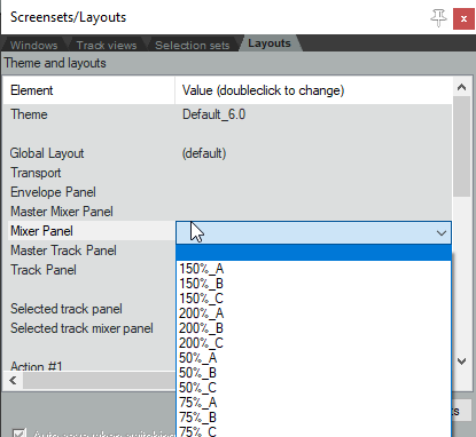
Global Layout
Selects theme defaults for all layout elements.
Transport
Selects layout for the Transport bar.
Envelope Panel
Selects a layout for track envelope panels. See Chapter 18.
Master Mi1xer Panel
Selects a layout for the Master in the Mixer panel.
Mixer Panel
Selects a layout for all tracks and folders in the Mixer panel.
Master Track Panel
Selects a layout for the Master in the Track control panel.
Track Panel
Selects a layout for all tracks and folders in the Track Control panel.
Selected track panel
Selects a layout for selected tracks in the Track Control panel.
Selected track mixer panel
Selects a layout for selected tracks in the Mixer panel.
The behavior and appearance of your various layout options are determined by whichever theme you are using. If you are using REAPER’s default theme (Options. Themes. Default) then you can modifyb any of these layouts using the Theme Adjuster – see Chapter 15.
You do not need to open the Layouts window to select layouts for a project. You can also use the Options, Layouts command from the main menu or the Track layout command from the TCP or MCP context menu.