14.5 Notation Editor View Options
The MIDI Editor main menu View command includes a number of notation view specific options.
Kind: concept (user-guide-section) Chapter: 14 Music Notation and REAPER's Notation Editor Source: REAPER User Guide v7.70
The MIDI Editor main menu View command includes a number of notation view specific options:
Proportional (musical) note spacing.
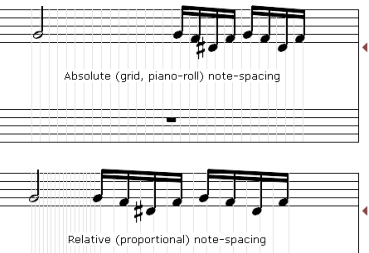
Enabling this option selects proportional note spacing rather than
absolute spacing (as in piano roll view) - see images, right. With absolute spacing (top image), the timing grid is evenly spaced, and the notes placed in their absolute timing positions on it. With proportional spacing (lower image) the grid is adjusted to suit this: longer notes need not take up their larger actual timeportion of the bar and the grid tends to be narrowed, shorter notes are no longer compressed into their actual short timespace and the grid is widened accordingly.
Continuous view always, regardless of zoom level:
This toggle option determines how your notation is displayed in the MIDI Editor: it is explained in section 14.7. Minimize ties for all notes by default: a toggle option. Automatically double dot notes: a toggle option. Automatically triple dot notes: a toggle option. Display pedal events: A toggle to determine whether or not pedal events are shown.
Bracket tracks by folder: Enabling this option will cause a bracket to be drawn to the left of the score to
indicate where a number of consecutive tracks belong in the same folder. Color note heads: Determines whether or not note heads are colored in accordance with whichever option has
been selected (View, Color notes by command). Position dynamics below the staff by default: a toggle option that determines positioning of dynamics on
the staff. Automatically detect triplets: a toggle option. Tuplets and triplets are discussed later in this chapter. Automatically voice overlapping notes: Voicing allows the notes that make up a chord to be arranged in
various ways so as to vary the sound. The automatic voicing of overlapping notes can be toggled on and off. Show project tempo changes: A toggle to determine whether or not project tempo changes should be
displayed above the score in the notation editor. Key signatures: Allows you to specify how key signature should be managed. Sub-menu toggle options are
Key signature change affects all tracks and Transposing display affects key signatures.. Display quantization: The default setting is 1/16 but you can use the slider to choose 1/64, 1/32 or 1/8. Display quantization, Minimum note length: The default setting is 1/64, but you can use the slider to instead choose 1/256, 1/128, 1/32, 1/16 or 1/8.
Neither your display quantization nor your minimum note length settings will affect the underlying MIDI in any way. They only determine how notes are displayed. To understand how these two options work, you need to consider them together. The display quantization setting ensures that for display purposes all but the shortest notes will be rounded to whatever value is selected. The minimum note length setting allows shorter notes to be displayed regardless of the display quantization setting. For example, if display quantization is set to 1/16 and minimum note length to 1/64 (the default settings), then notes slightly longer or shorter than 1/16 will be displayed as 1/16, those slightly longer or shorter than 1/8 will be displayed as 1/8, and so on. It will, however, still be possible to display notes shorter than 1/16, such as 1/32 or 1/64. In addition, the Contents menu includes a toggle option All media items are editable in notation view.