18.36 Tempo/Time Signature and Play Speed Envelopes
In Chapter 10, you learnt how to change time signature and/or tempo within a project.
Kind: concept (user-guide-section) Chapter: 18 Automation – Envelopes and More Source: REAPER User Guide v7.70
In Chapter 10, you learnt how to change time signature and/or tempo within a project. Another (and perhaps more intuitive) way of doing this is to use the Tempo/Time Signature Envelope. To display this envelope in the main REAPER arrange window:
- From REAPER's main menu choose View,
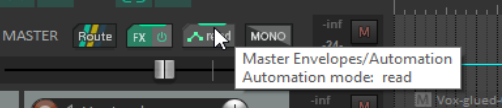
Tempo envelope. This displays the Master and its tempo envelope in arrange view. 2. Set the Automation mode for the Master Track to Read.
With the tempo map visible an envelope appears on the Master Track in arrange view. The default envelope range (bpm) is set in your Editing Behavior, Envelope Display Preferences (Chapter 22). You can vary this range for individual projects: right click over the envelope and from the menu choose Envelope defaults, Tempo envelope range to open a dialog where you can do this.
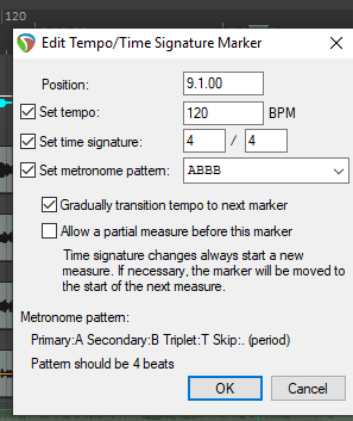
To select your preferred point shape, right click on the envelope and from the context menu choose Envelope defaults, Default point shapes, then either Linear or Square.
This envelope can be modified: you can add points (Shift click), or draw freehand (Ctrl drag), move them, delete them, adjust them, etc. The master tempo envelope cannot be modified by freehand drawing. Editing multiple points at once on this envelope causes each point to be adjusted pro rata, not by a constant BPM value.
With each envelope point a tempo/time signature marker is added on the timeline - editing their values has the same effect as editing the envelope points. If you move them, the points move with them (and vice versa). REAPER's Actions List also includes an action Adjust entire envelope tempo... This opens a dialog box which offers you the options of adjusting the entire envelope by a percentage or by a set number of beats per minute.
You can also add to the Master a Playrate envelope which can be used to speed up or slow down playback. This envelope is applied to all tracks, audio and MIDI. To do this:
-
Click the Envelopes button in the Track Master to display the Master Envelopes window. Now tick the item Playrate. Make sure this item is marked as both Visible and Armed.
-
Close this window.